
How to manage multi-warehouse inventory, stock counts, and purchase orders from A to Z? (Guide)
Short answer: To manage your store's inventory and warehouses, first define your physical locations on the Depolar (Warehouses) page, then enter warehouse-specific quantities using the Stok düzelt (Adjust stock) button on the Envanter (Inventory) screen. You can manage physical shelf counts on the Sayım oturumları (Count sessions) screen and inter-warehouse transfer recommendations on the Stok dengeleme (Stock rebalancing) screen.
Step-by-Step Multi-Warehouse Stock and Inventory Management (A to Z)
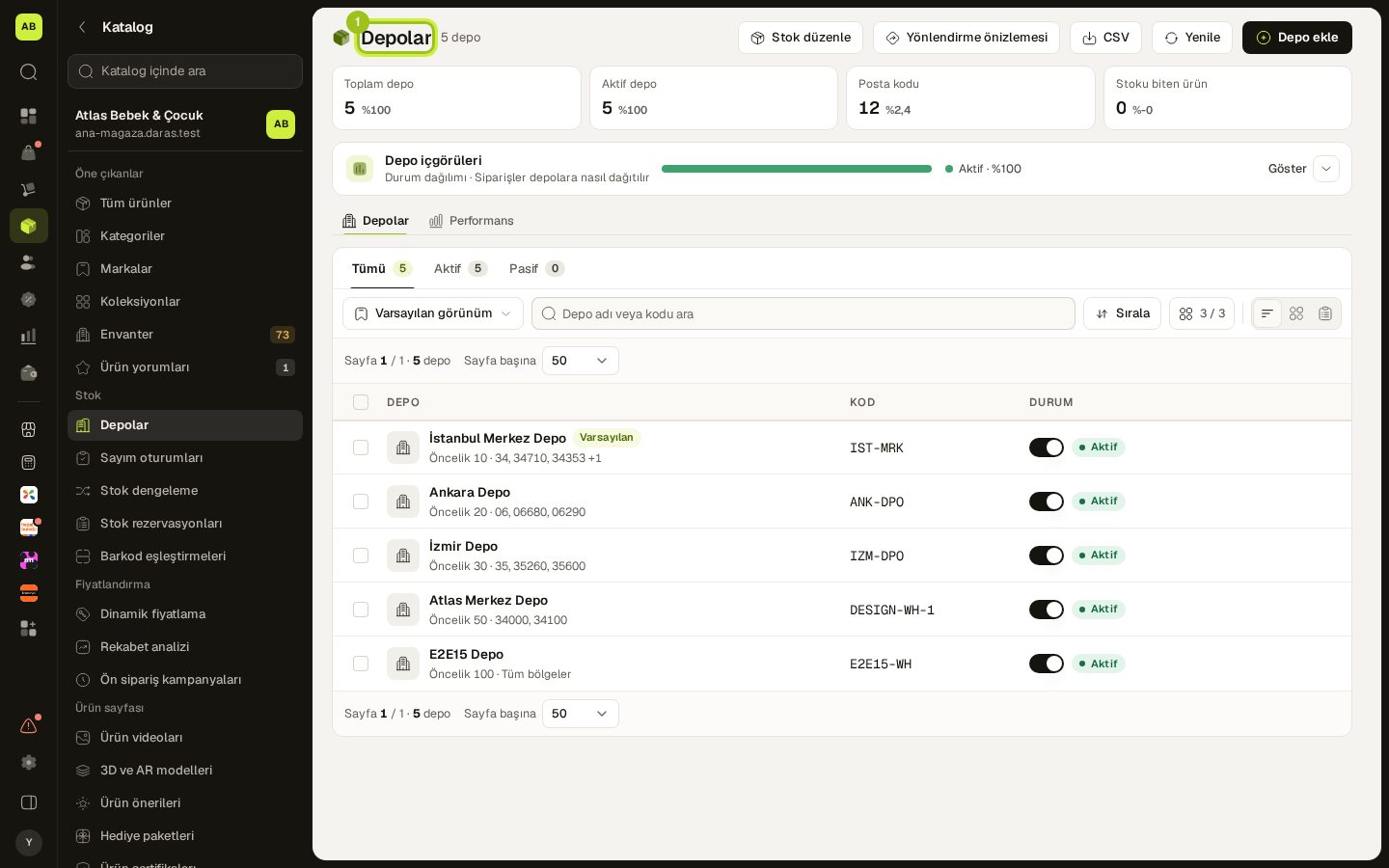
Step 1: Define Your Warehouses and Primary Warehouse
- From the left menu, go to the Envanter → Depolar (Inventory → Warehouses) page and add your new warehouse location.
- Mark your main fulfillment center as Varsayılan (Birincil) Depo (Default (Primary) Warehouse) (all single-warehouse stock entries and marketplace stock feeds sync with your primary warehouse).
Step 2: Adjust Stock and Map Barcodes from the Inventory Screen
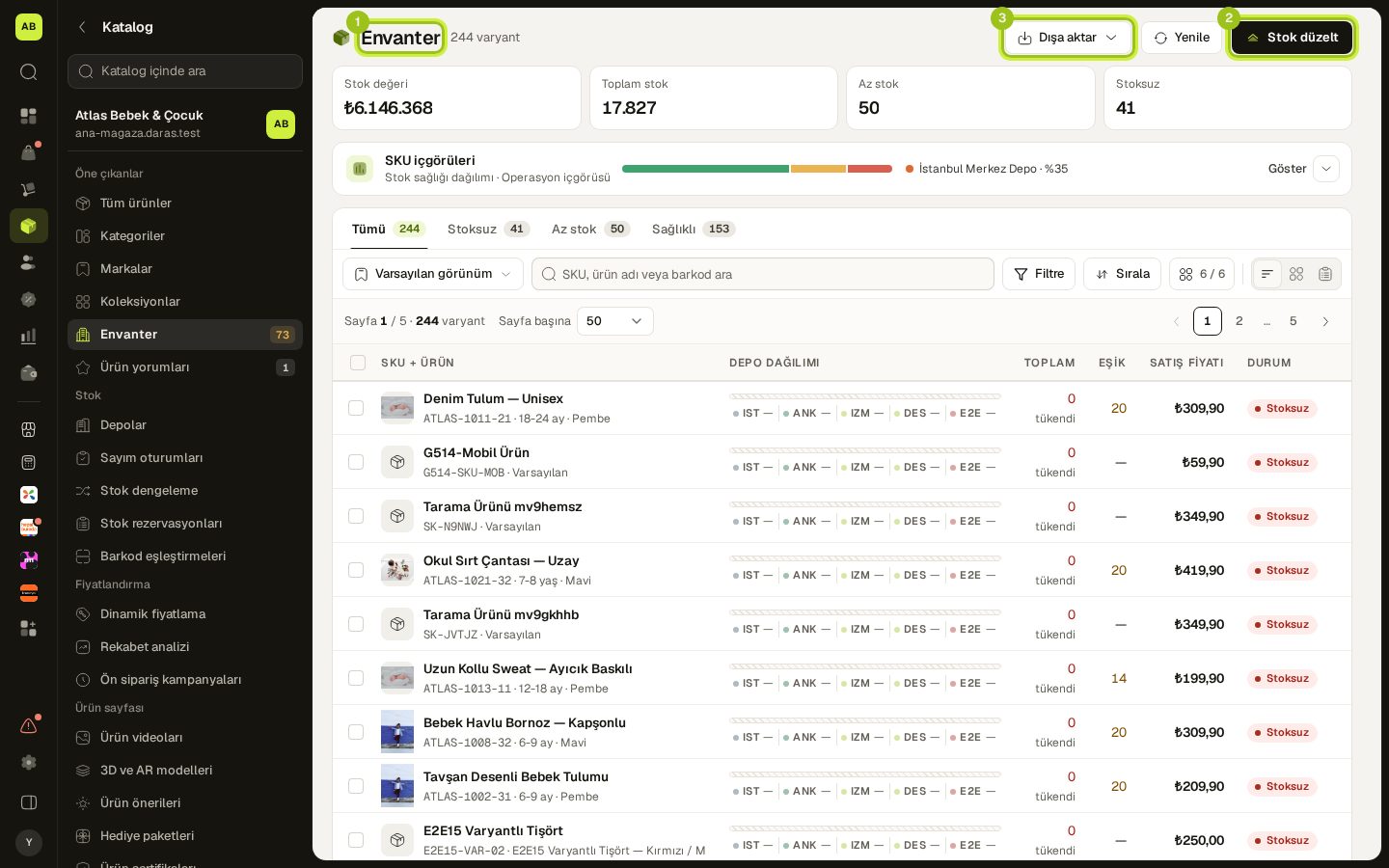
- Go to the Envanter page, search for the product or variant, and click the Stok düzelt button in the top right.
- Select the relevant warehouse and save the new stock quantity along with the adjustment reason (
Mal kabul(Goods receipt),Sayım farkı(Count discrepancy),Hasar/Fire(Damage/Shrinkage)). - Use the Barkod eşleştirmeleri (Barcode mappings) page to manage product barcodes and print shelf or product labels.
Step 3: Open a Count Session and Monitor Stock Reservations
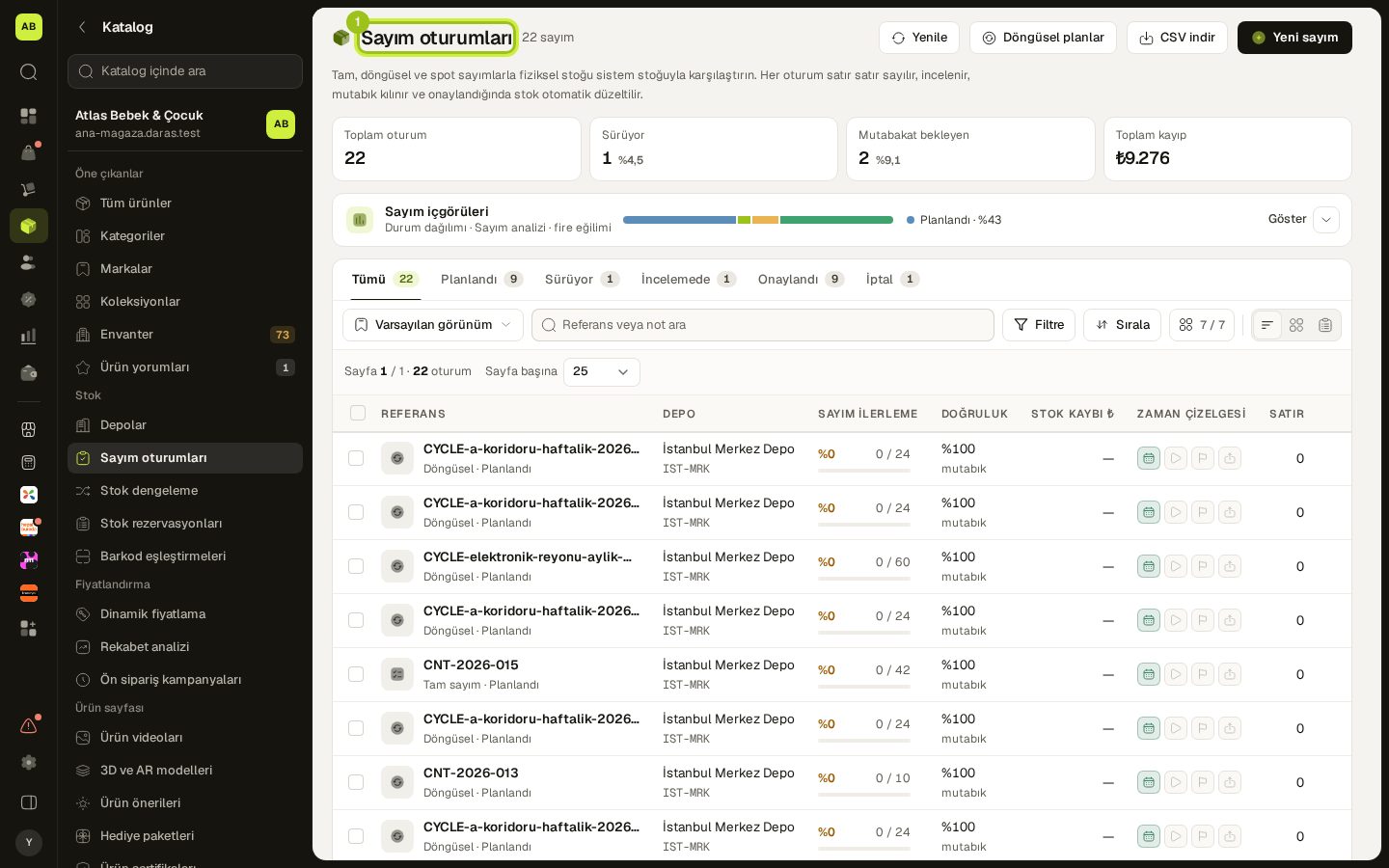
- For periodic warehouse counts, start a new session on the Envanter → Sayım oturumları (Inventory → Count sessions) screen, enter the counted quantities, and approve them.
- View stock held in carts or orders awaiting payment on the Stok rezervasyonları (Stock reservations) page, and release expired reservations.
Step 4: AI-Powered Stock Rebalancing and Purchase Orders
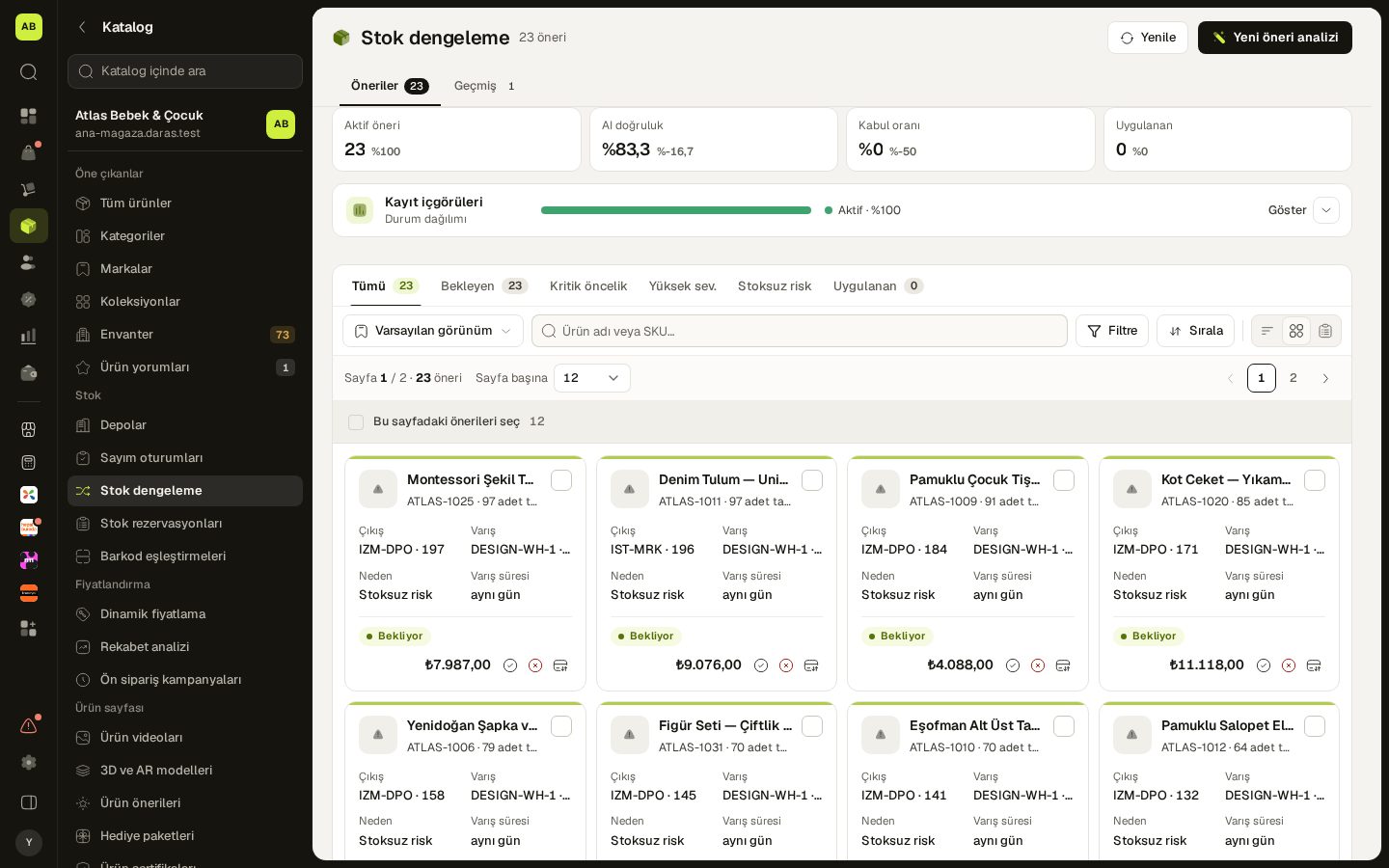
- Review and apply recommendations on the Stok dengeleme screen to see which products should be shifted between your warehouses.
- To order new stock from your suppliers, create an order on the Satın alma siparişleri (Purchase orders) screen and complete goods receipt.
Common Issues and Solutions
| Issue / Warning | Cause | Solution |
|---|---|---|
| Product shows total stock available, but the cart says "Stok tükendi" (Out of stock) | All on-hand stock has been reserved by pending orders. | Check stalled reservations on the Stok rezervasyonları screen, or add new stock via Stok düzelt on the Envanter page. |
| Stock sent to marketplaces does not match the primary warehouse | Stock was entered into an inactive secondary warehouse. | Verify on the Depolar screen that the shipping warehouse is active and set as primary. |