
How to use general store settings, job monitor, activity log, and notifications
You can use Ayarlar (Settings) and the system monitoring screens to manage your store's legal title, currency, and contact details, track bulk tasks running in the background via Görev izleyici (Job monitor), and audit changes made by your teammates via İşlem geçmişi (Activity log).
1. Configuring General Store Settings
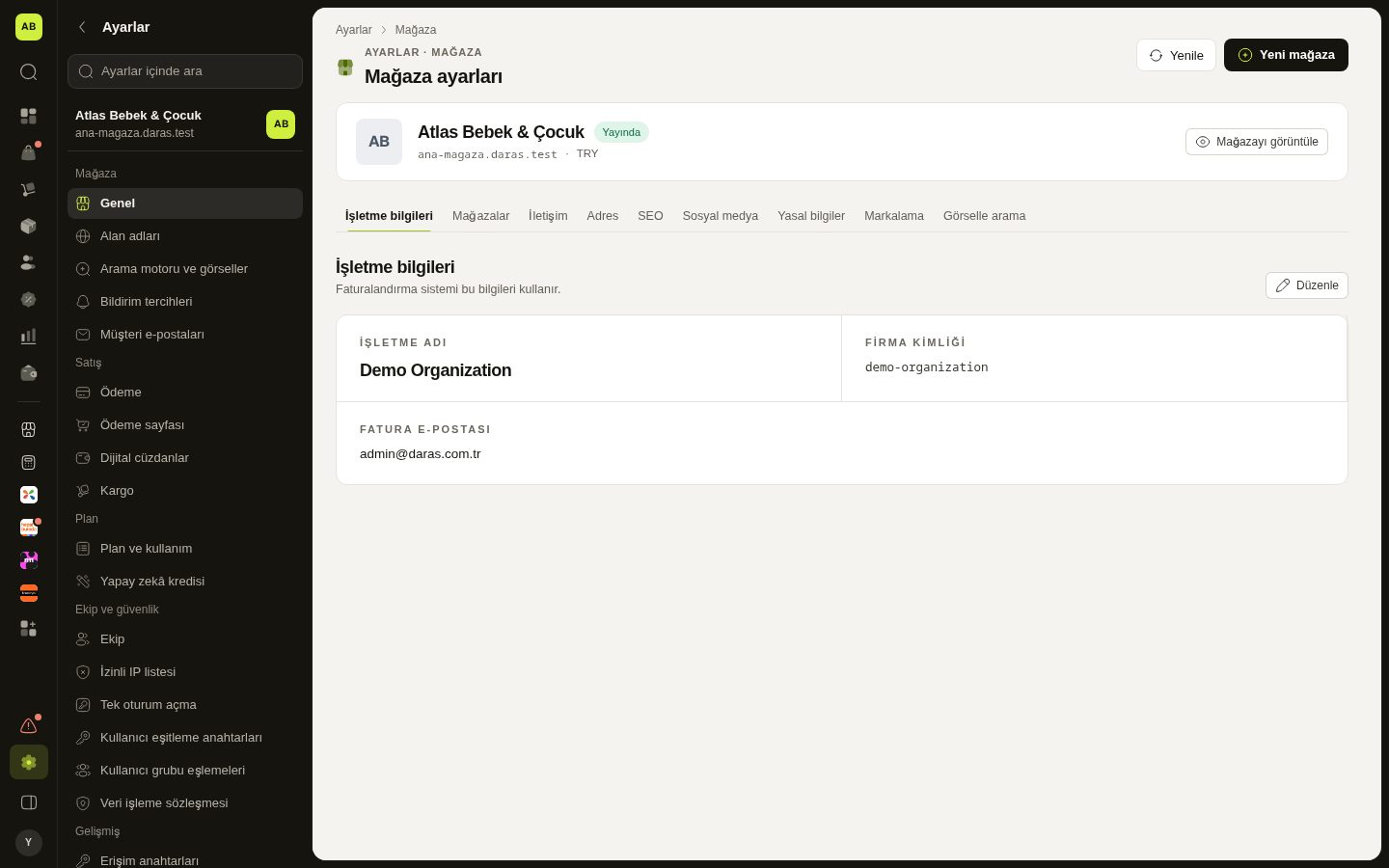
- Click the Ayarlar button at the bottom of the left menu and open the Mağaza bilgileri (Store details) section.
- Fill in the Mağaza adı (Store name), Resmi ticari unvan (Official legal name), Destek e-postası (Support email), Telefon numarası (Phone number), Varsayılan para birimi (TRY/USD/EUR) (Default currency (TRY/USD/EUR)), and Saat dilimi (Time zone) fields, then click Kaydet (Save).
- When you need to purchase an extra pack for AI features, you can top up your balance from the Yapay zekâ kredileri (AI credits) checkout screen.
2. Job Monitor and Bulk Import Tracking
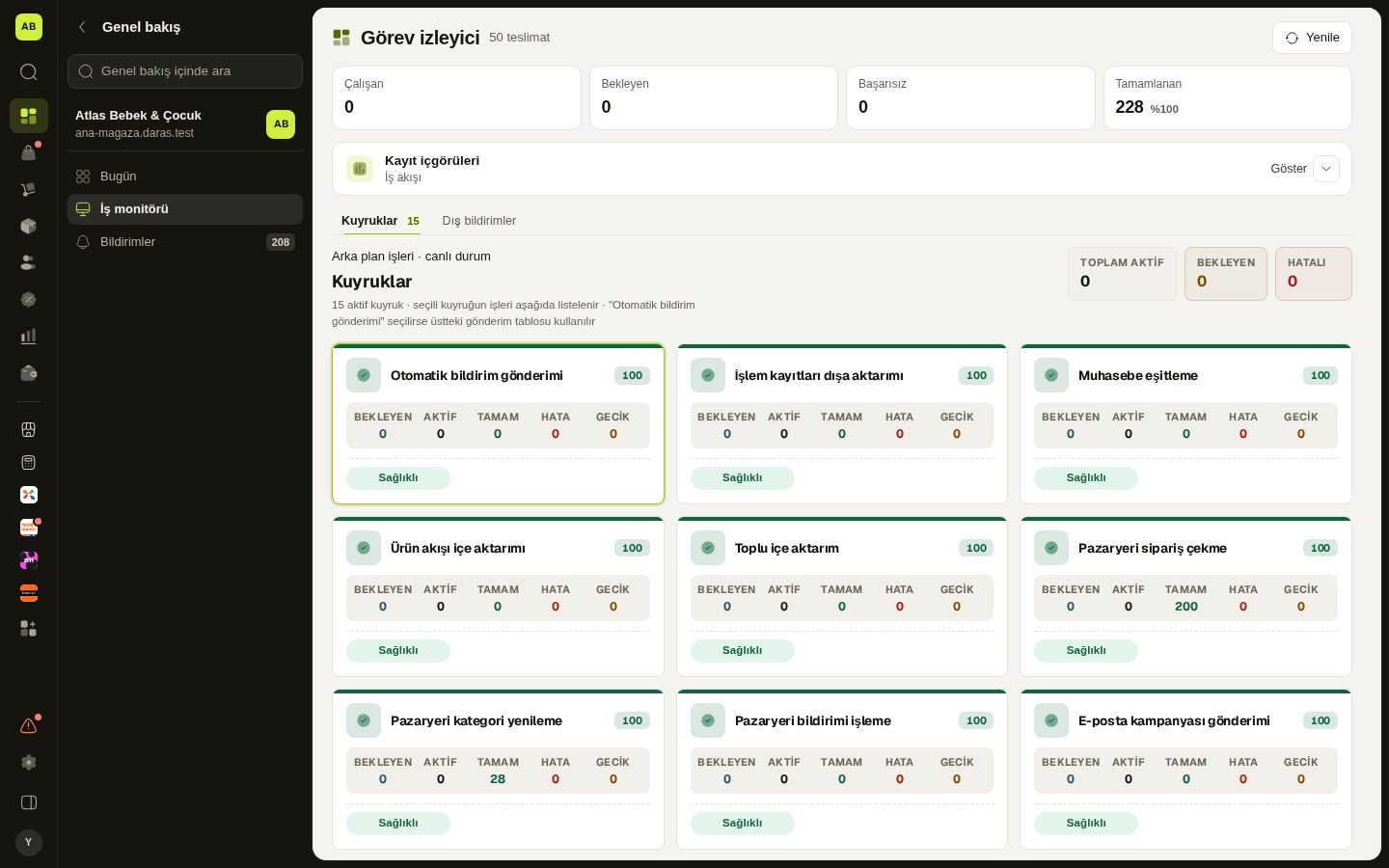
- When you start an XML sync, bulk product/customer import, or bulk e-invoice (e-Fatura) generation, go to the Görev izleyici page.
- Monitor Çalışan (Running), Bekleyen (Pending), Başarısız (Failed), and Tamamlanan (Completed) background jobs live from the tabs at the top.
- If a job fails, click the row to view the error reason in Turkish and restart it with a single click; check the email/SMS queue from the Otomatik bildirim gönderimleri (Automated notification deliveries) table at the bottom.
3. Notifications, Activity Log, and Store Selection
- Review new order, low stock, or marketplace alerts on the Bildirimler (Notifications) screen.
- Audit all actions performed by team members in the dashboard on the Operasyon → İşlem geçmişi (Operations → Activity log) page.
- Check service uptime on the Sistem durumu (System status) screen; if you have multiple stores, switch your active store on the Mağaza seç (Select store) screen.
Common Issues and Solutions
| Issue | Cause | Solution |
|---|---|---|
| A job failed with "Başarısız" in the job monitor | A required column is missing in the uploaded file, or the marketplace API connection timed out momentarily | Check the error line in the job details and click the Yeniden dene (Retry) button. |
| I changed my store name, but e-invoices (e-Fatura) still show the old title | The e-invoice (e-Fatura) template uses the tax/legal title field rather than the store name | Update the official legal name in Ayarlar → Mağaza bilgileri and E-fatura ayarları (e-Invoice settings). |
Tips
- You don't have to wait at your screen after uploading a large XML or Excel file; once the job finishes, a completion summary automatically appears under the Bildirimler bell icon.