
How to bulk import products via Excel (CSV) or a supplier XML feed
Instead of adding hundreds or thousands of products one by one, you can import them into your store using automated rules from an Excel / CSV file or a supplier XML feed.
1. Connecting a Supplier XML Feed and Using the Rule Studio
- From the left menu, go to Ürünler → XML içe aktarma (Products → XML import) and click the Yeni XML kaynağı ekle (Add new XML source) button.
- Select a supplier template (standard XML, Bezos provider template, or custom tag mapping) and paste the XML link (URL).
- In the Alan ve Kategori Eşleme (Field and Category Mapping) step, map the supplier's categories to your store categories and verify the variant and barcode tags.
- On the Fiyat, Filtre ve Stok Kuralları (Price, Filter, and Stock Rules) tab:
- Enter the Kâr oranı (%) (Profit margin (%)), Sabit ek bedel (TL) (Fixed additional fee (TRY)), and Desi / kargo payı (Volumetric weight (desi) / shipping allowance) rules to add on top of the purchase price.
- Set the Minimum stok filtresi (Minimum stock filter) (for example, set stock below 3 to zero) and specify any brands to exclude.
- Check the calculated sale prices of the first 10 products on the Deneme ekranı (Önizleme) (Test screen (Preview)) and click the Kaydet ve Eşitlemeyi Başlat (Save and Start Sync) button.
2. Bulk Importing Products via Excel or CSV File
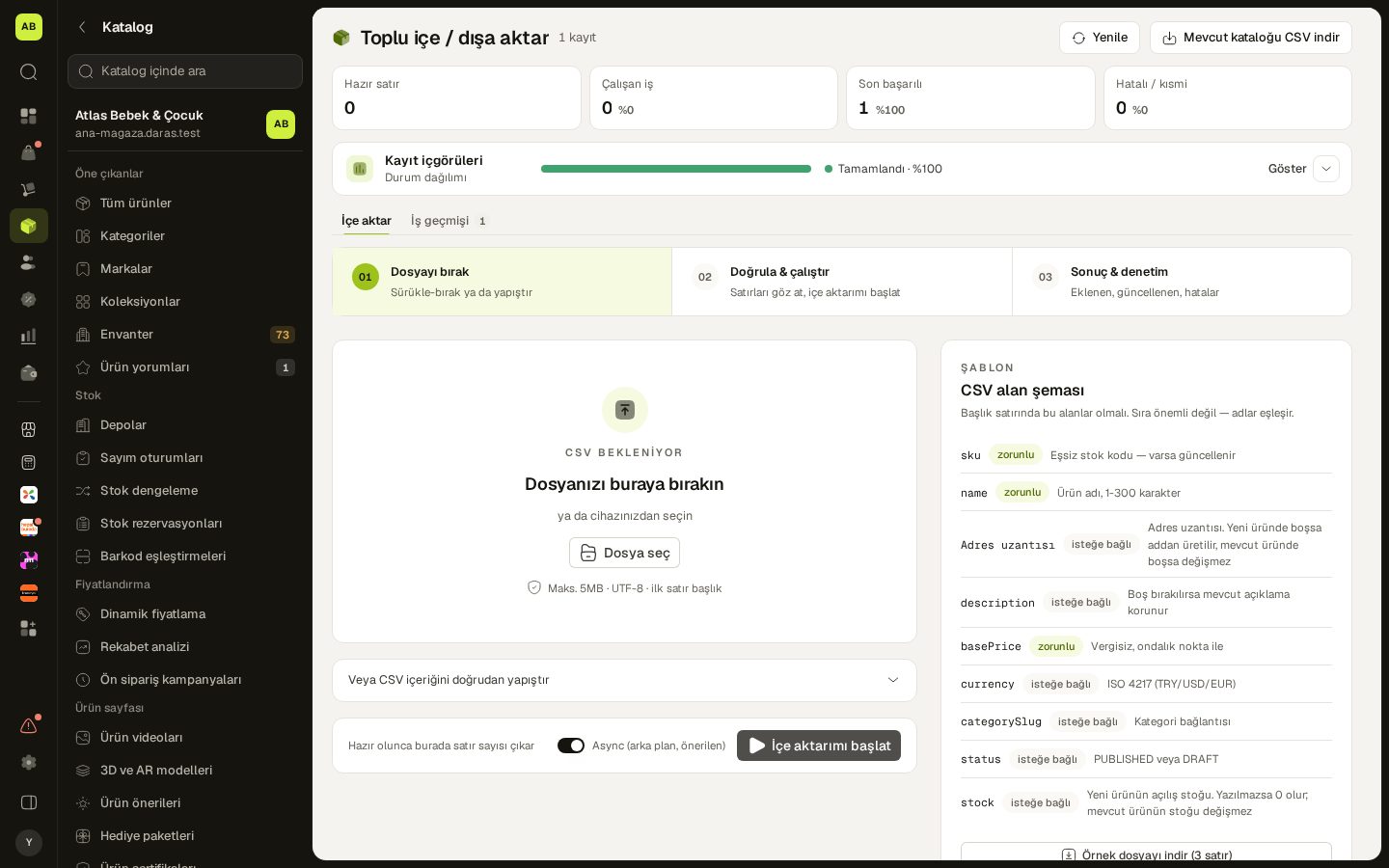
- Click the İçe aktar (Import) button on the Ürünler (Products) page, or open the Toplu içe aktarma (Bulk import) screen.
- Download the ready-made column structure using the Örnek Excel/CSV şablonunu indir (Download sample Excel/CSV template) link, fill in your products in the template, and upload the file.
- Track import progress and any row-level warnings on the Görev izleyici (Job monitor) screen.
Common Issues and Solutions
| Issue | Cause | Solution |
|---|---|---|
| XML sync shows an "Zaten çalışan bir görev var" (A job is already running) warning | The previous sync for the same XML source has not finished yet | Wait for the current run to finish on the Görev izleyici screen; the system blocks concurrent runs for the same source to prevent conflicts. |
| Variant stock of imported products appears as 0 on the storefront | A primary warehouse (default warehouse) has not been selected | Mark your main warehouse as "Varsayılan depo" (Default warehouse) on the Envanter → Depolar (Inventory → Warehouses) screen and re-run the sync. |
Tips
- Instead of publishing raw, short product titles straight from a supplier XML feed, run the Yapay zekâ ile açıklama ve SEO (AI description and SEO) tool after importing to differentiate your store from other dropshipping sites.