
How to add your first product to your store and publish it for sale
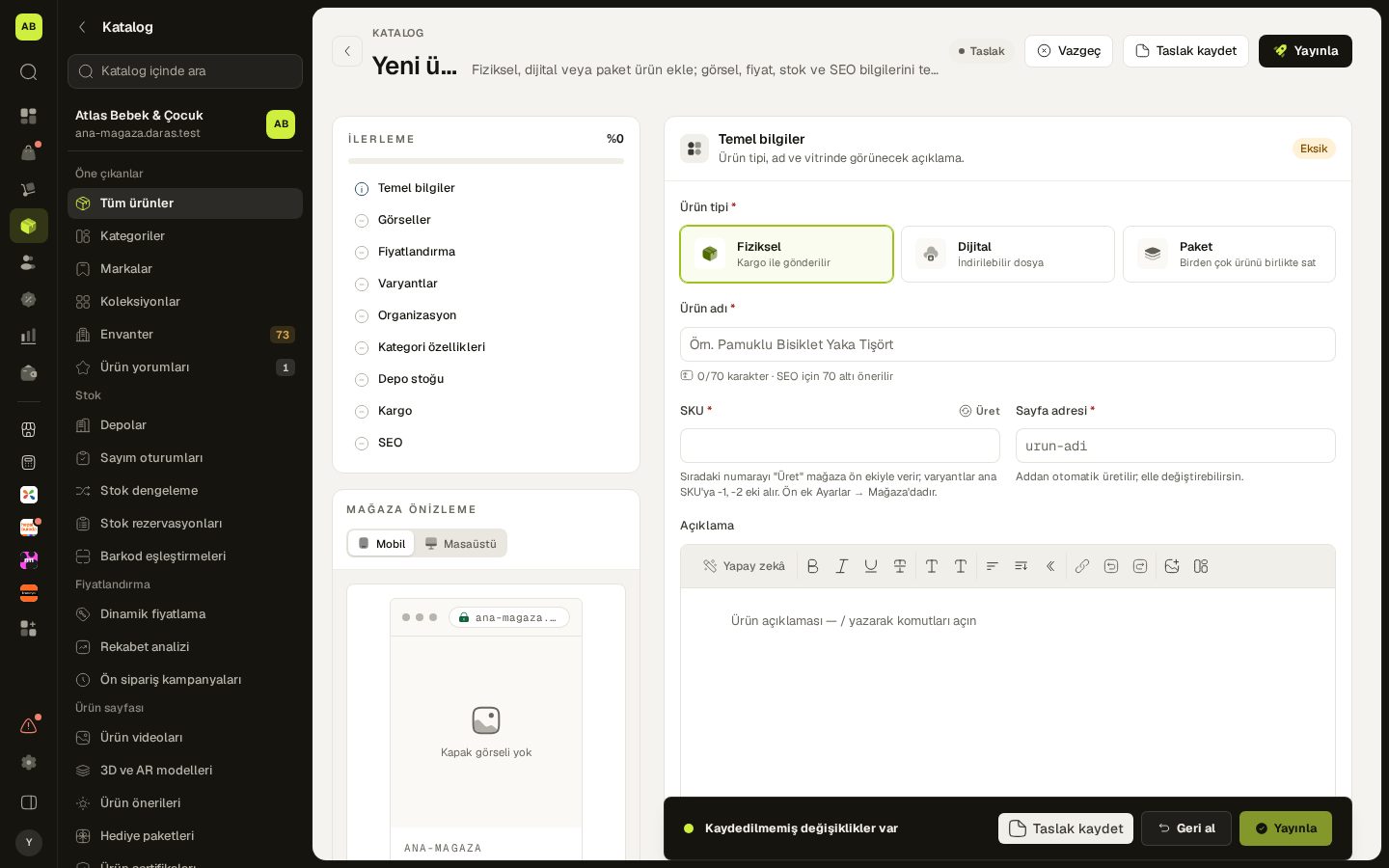
You don't need to deal with complex settings to put your first product on sale in your store. By entering basic details on the updated Yeni ürün (New product) screen, you can publish your product to your storefront in a few minutes.
Adding Your First Product Step by Step
- From the left menu, go to the Ürünler (Products) page and click the Yeni ürün button in the top right (or İlk ürünü ekle (Add first product) if your store has no products yet).
- In the Ürün adı (Product name) field, enter a clear title that customers search for (for example, "Cotton Oversize White T-Shirt").
- Click the Yapay zekâ ile açıklama yaz (Write description with AI) button above the description box to automatically generate sales and SEO copy from the product attributes.
- Drag and drop your product photos into the Görseller (Images) area; the first image becomes the storefront cover photo.
- In the Fiyatlandırma ve Stok (Pricing and Stock) section, fill in the Satış fiyatı (KDV dahil) (Sale price (VAT included)) and Stok adedi (Stock quantity) fields; your stock quantity is automatically recorded in your primary warehouse.
- In the right column, select the product's Kategori (Category) and Marka (Brand); if there are required attributes linked to the category, choose them from the dropdowns that appear.
- Click the Yayınla (Publish) button in the top right to put the product on sale immediately.
Common Issues and Solutions
| Issue | Cause | Solution |
|---|---|---|
| Clicking Publish shows a "Zorunlu özellik eksik" (Missing required attribute) warning | A required attribute for the selected category was left blank | Fill in the attribute field marked in red or click the Yapay zekâ ile otomatik doldur (Autofill with AI) button. |
| Product appears as "Tükendi" (Out of stock) on the storefront | Stock quantity remained 0 and "Stok bittiğinde satışa devam et" (Continue selling when out of stock) is turned off |
Increase the stock quantity on the product edit screen and save. |
Tips
- Instead of writing similar products from scratch one by one, use the Kopyala (Duplicate) option in the product list to clone an existing product and change only its name and photo.