
How to manage product reviews, Q&A, recurring subscriptions, gift cards, and support tickets
Use the screens below to manage trust-building Ürün yorumları (Product reviews) and Soru-Cevap (Q&A) sections, turn waiting demand into sales with Stoğa gelince / Fiyatı düşünce haber ver (Back-in-stock / Price drop alerts) notifications, set up Abonelik / Paket ürün (Subscriptions / Product bundles), and reply to Destek talepleri (Support tickets).
1. Product Reviews, Q&A, and Product Bundles
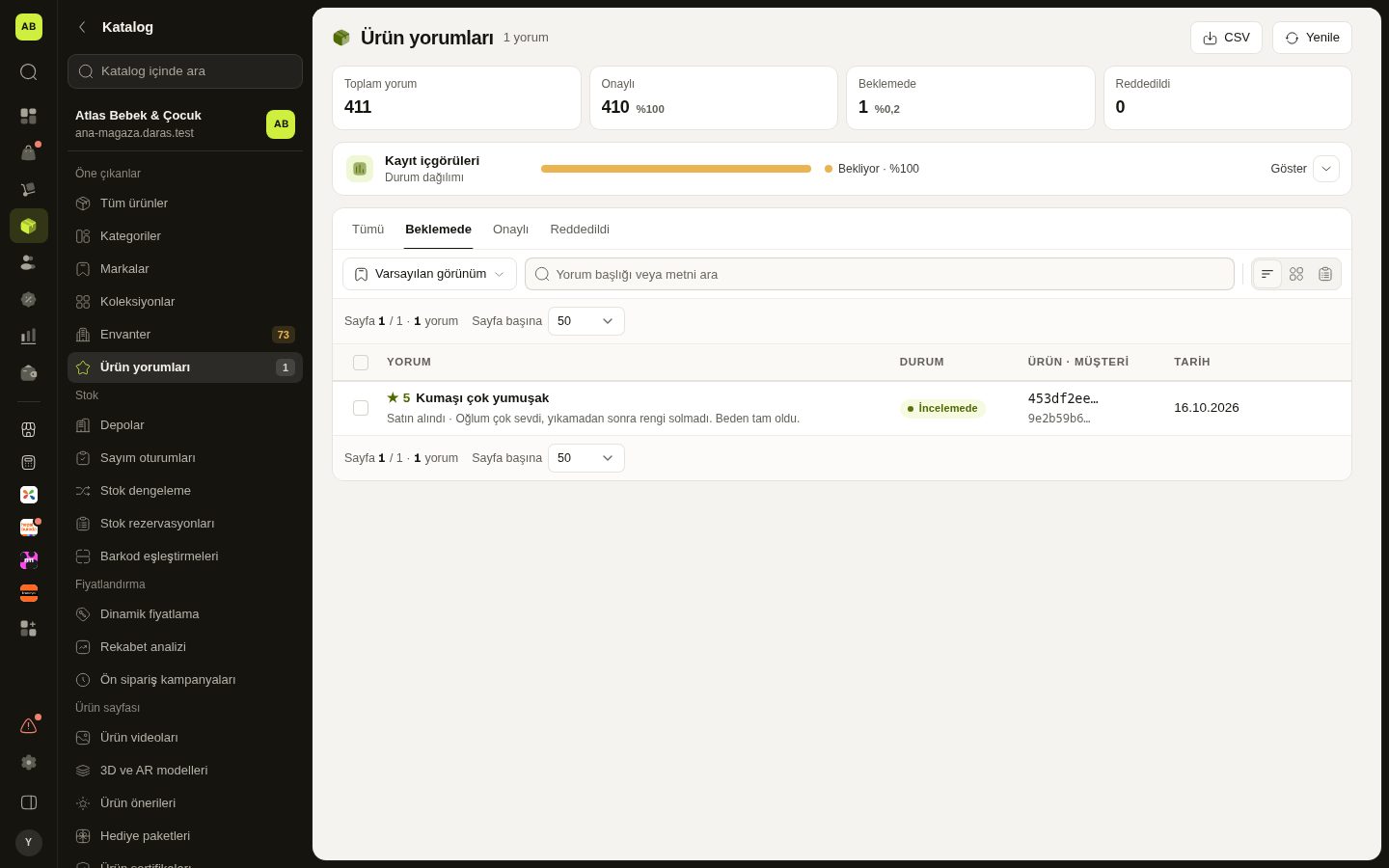
- From the left menu, go to the Müşteriler → Ürün yorumları (Customers → Product reviews) page; review and approve incoming ratings by Durum (Status), Ürün · Müşteri (Product · Customer), and the Satın alındı (Verified purchase) badge. Track per-product star averages from the Yorum özetleri (Review summaries) screen.
- Answer questions submitted by customers on product pages from the Ürün soru-cevap (Product Q&A) page; if you wish, make your answer public with the "Sık sorulan olarak ürün sayfasında yayınla" (Publish on product page as FAQ) option.
- Use Ürün paketleri (Bundle) (Product bundles) to group frequently bought-together items into value sets, and Ürün etiketleri (Product tags) for quick grouping.
2. Back-in-Stock Alerts, Price Alerts, Gift Cards, and Subscriptions
- Track customers waiting on sold-out items on the Stoğa gelince haber ver (Back-in-stock alerts) screen and shoppers waiting for discounts on the Fiyat alarmları (Price alerts) screen; automatic emails/SMS messages are sent as soon as stock is added or the price drops.
- Define digital gift vouchers in various denominations on the Hediye kartları (Gift cards) page.
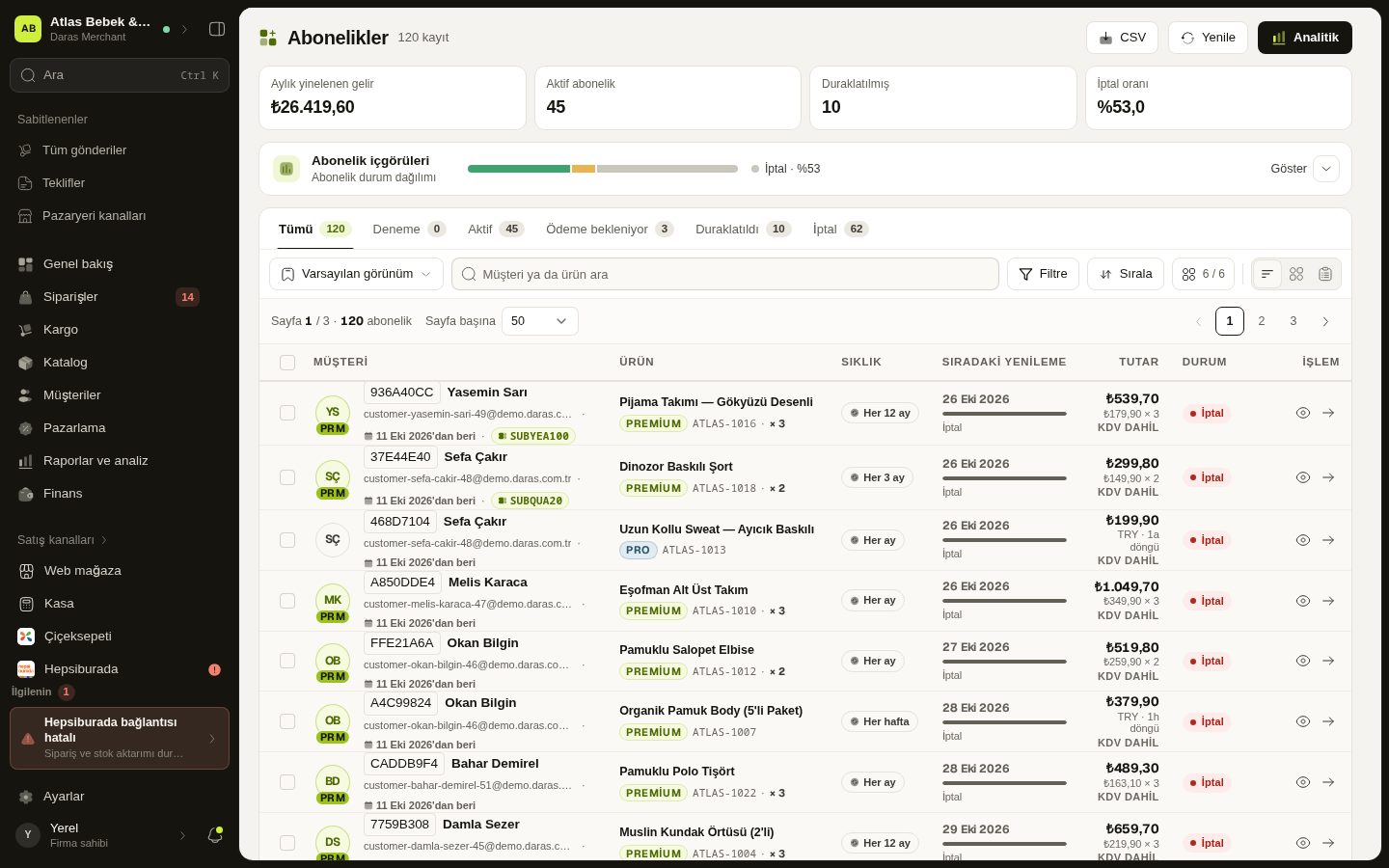
- Use Abonelikler (Subscriptions) for products shipped at regular intervals (every 15 days / monthly), and Abonelik analitiği (Subscription analytics) for subscriber details and monthly recurring revenue metrics.
3. Customer Support Center and Daras Support Desk
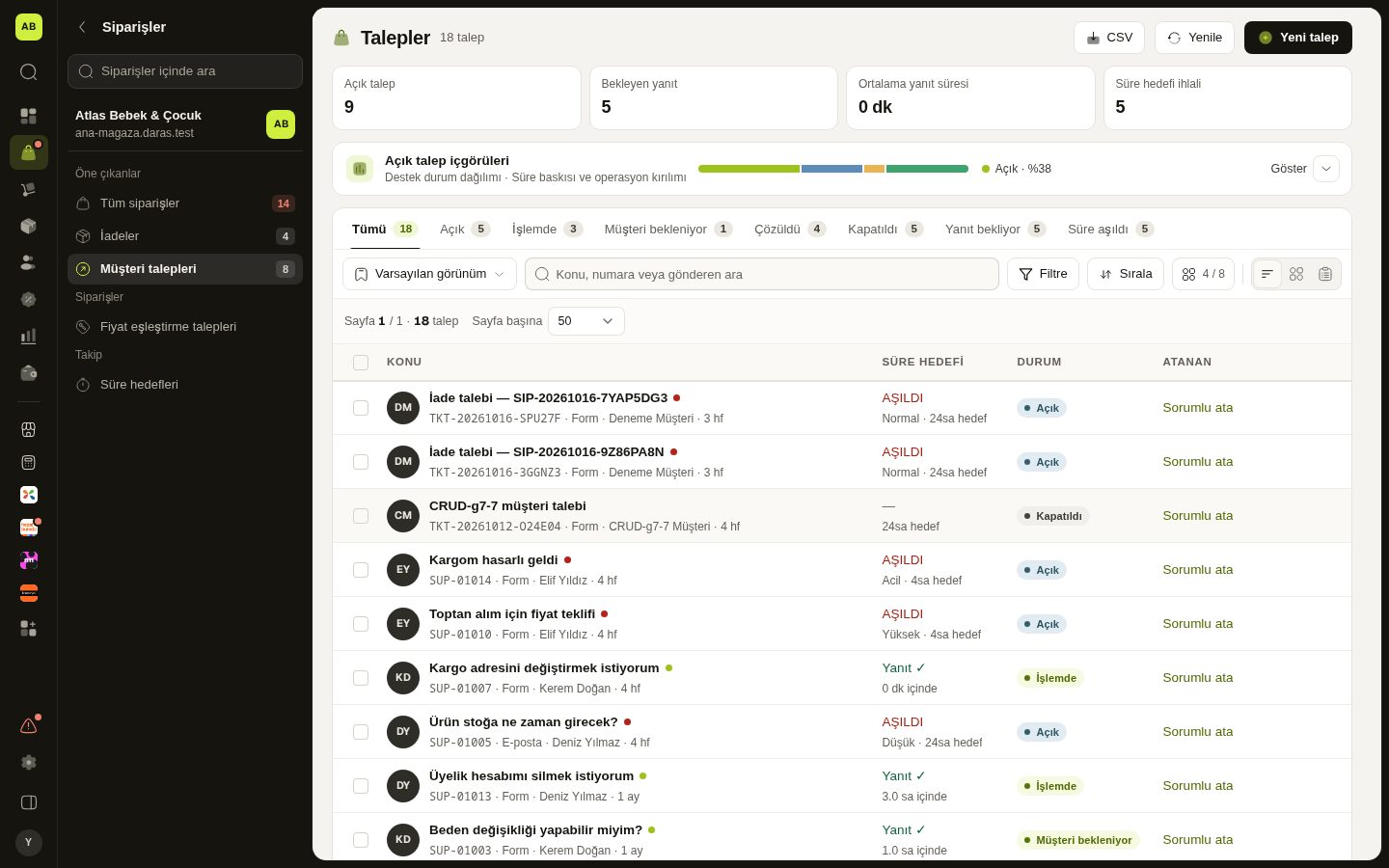
- Manage contact and help tickets opened by your store's customers on the Destek talepleri screen using the Konu (Subject), Süre hedefi (SLA target), Öncelik (Priority), Durum, and Sorumlu ata (Assign owner) columns.
- When you want help directly from the Daras technical team as a store owner, create a ticket from the Daras Destek (Daras Support) screen.
- On the ticket form, first choose a Konu türü (Topic type), enter a brief title in the Konu field, and describe the issue in a few sentences in the Açıklama (Description) field; you can include bold text, lists, and links.
- Upload screenshots showing the issue via Ekran görüntüsü ekle (Add screenshot). You can attach up to 10 images in PNG, JPG, or WebP format; images are visible only to you and the Daras support team.
- After submitting the ticket, you can also attach new images when writing a reply.
Common Issues and Solutions
| Issue | Cause | Solution |
|---|---|---|
| Cannot attach an image to a Daras Support ticket | The file is not PNG, JPG, or WebP, is too large, or the 10-image limit on the ticket has been reached | Re-save the screenshot as PNG or JPG; if you reached the limit, pick the clearest screenshots and describe the rest in text in the description. |
| Back-in-stock notification was not sent | Stock was increased for the product, but the product status remained "Taslak" (Draft) | Waiting customers are notified as soon as you switch the product to Aktif / Yayında (Active / Published). |
| Gift card code does not work at checkout | The gift card has expired or its balance is zero | Search the code on the Hediye kartları screen to check its remaining balance and expiration date. |
Tips
- By checking the most requested products on the Stoğa gelince haber ver list weekly, you can place supplier purchase orders backed by guaranteed customer demand.