
How to create products with color, size, and custom dimension options (variants)
Grouping different color, size, shoe size, or custom measurement (width x height) options of the same item on a single product page makes shopping easier for customers and keeps inventory and barcode tracking organized.
1. Creating Standard Color and Size Variants
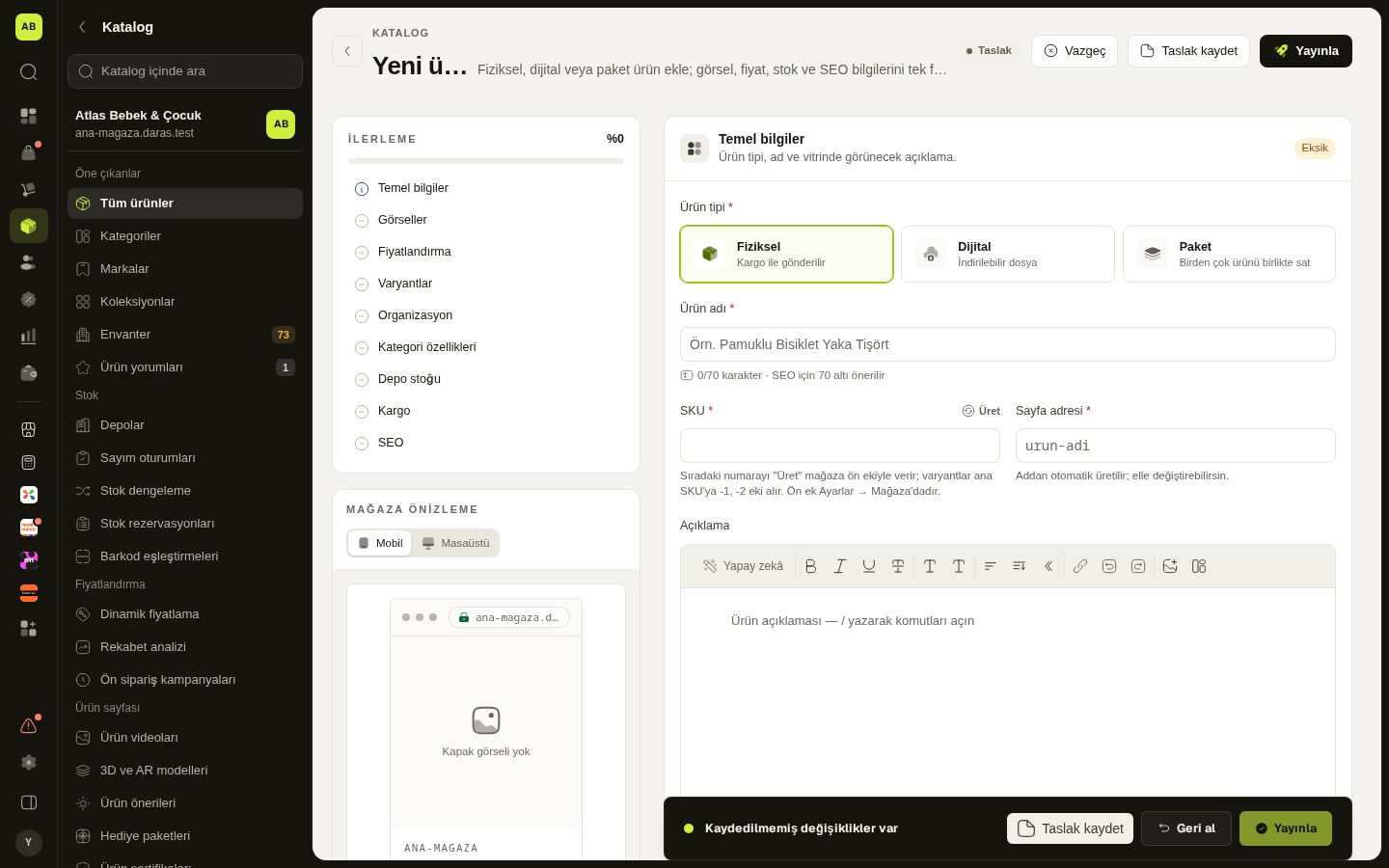
- On Ürünler → Yeni ürün (Products → New product) or an existing product's edit page, scroll down to the Varyantlar ve Seçenekler (Variants and Options) section.
- Click the Seçenek ekle (Add option) button and choose the option name (for example, Renk (Color), Beden (Size), Numara (Shoe size), or Ağırlık (Weight)).
- Enter the option values (for example,
S,M,L,XLorBlack,White); for color options, you can pick a shade from the color wheel or assign a dedicated photo to each variant. - In the Varyant tablosu (Variant table) generated automatically below, enter the Fiyat (Price), Stok adedi (Stock quantity), Stok kodu (SKU) (SKU), and Barkod (GTIN) (Barcode (GTIN)) for each combination.
- To configure shipping volumetric weight (desi), images, or warehouse allocation for a specific variant in detail, click the edit icon at the end of the row to open the variant details page.
2. Store-Wide Option Templates and Dimension Families
- To avoid retyping sizes on every product, go to Ürünler → Ürün seçenekleri (Products → Product options) and create a Yeni seçenek grubu (New option group).
- Choose the option type:
- Tekli seçim / Açılır liste / Renk kartelası (Single select / Dropdown / Color swatch): For standard sizes and colors.
- Çoklu seçim (Multi-select): For add-on materials or accessory selections.
- Ölçü ailesi (En x Boy / Metrekare) (Dimension family (Width x Height / Square meter)): For curtains, rugs, glass, or custom-cut items where customers enter their own measurements.
Common Issues and Solutions
| Issue | Cause | Solution |
|---|---|---|
| My variants appear as separate products on a marketplace | Different "Model Kodu / Ana Stok Kodu" (Model Code / Parent SKU) values were entered across variants | Make sure all variants share a common Ana Ürün Kodu (Parent Product Code) and that each variant has its own unique Barkod (Barcode). |
| Some sizes appear crossed out on the storefront | Primary warehouse stock for that variant row remained 0 |
Update the stock quantity of the relevant size in the variant table. |
Tips
- If all variants share the same price, enter the price once in the Toplu uygula (Apply to all) bar above the table to apply it across every row with a single click.