
How to add and bulk import brands in your store
Short answer: To define the brands of the products you sell in your store, go to Katalog → Markalar (Catalog → Brands) from the left menu and click the Yeni marka (New brand) button. By saving the brand name, logo, and SEO description, you can both enable brand filtering on your storefront and have brand mappings ready when sending products to marketplaces.
Creating and Managing Brands Step by Step
Step 1: Create a New Brand
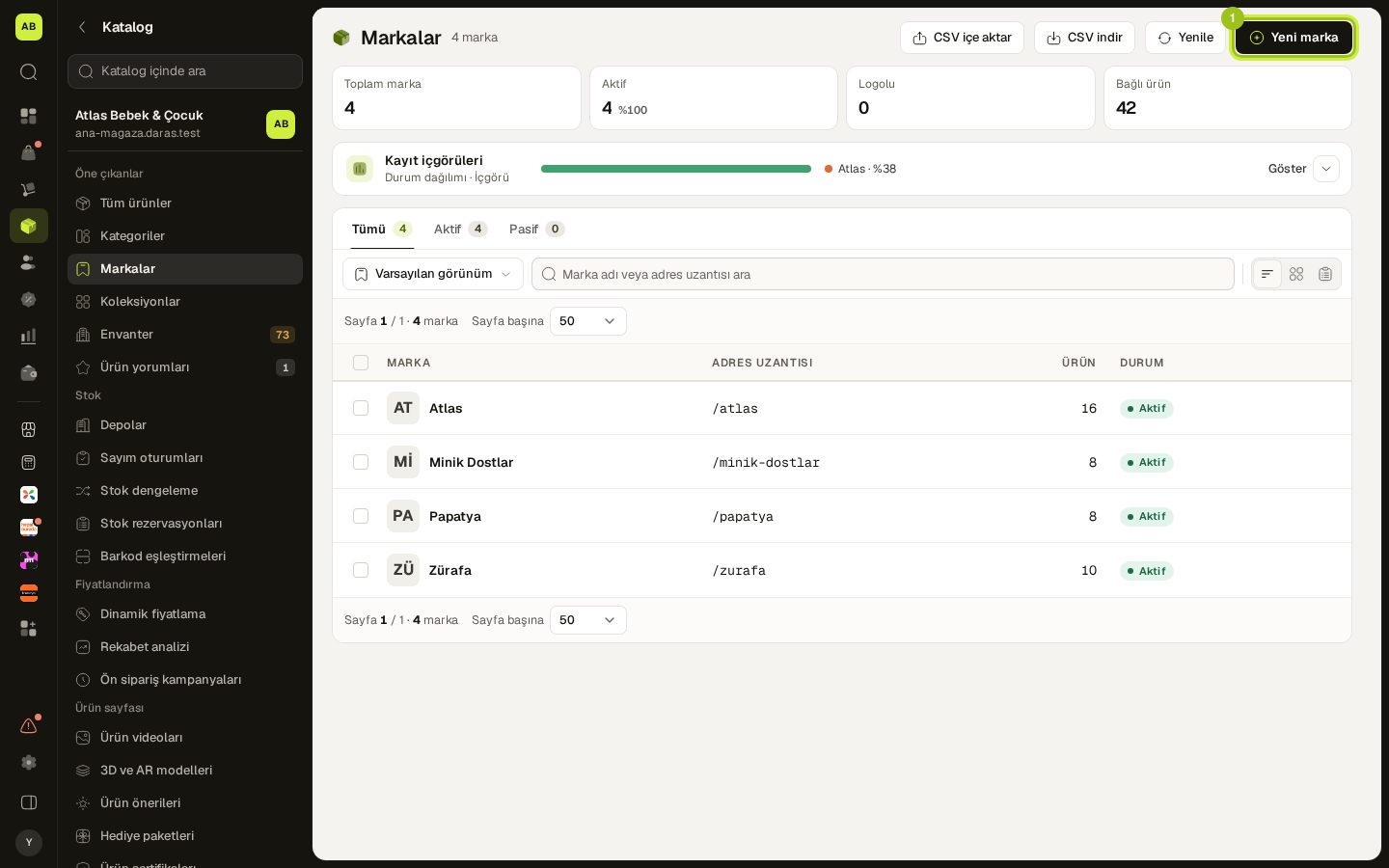
- From the left menu, go to the Katalog → Markalar screen.
- Click the Yeni marka button in the top-right corner (or Marka oluştur (Create brand) if there are no brands yet).
- In the window that opens:
- Enter the official name of the brand in the Marka adı (Brand name) box.
- The Adres uzantısı (URL slug) (page address) is generated automatically; edit it if you wish.
- Upload the brand image in the Logo (Logo) field.
- Write the brand's story and product range in the Açıklama (Description) field, or click the Yapay zekâ ile yaz (Write with AI) button to automatically generate an SEO-friendly rich-text description.
- Click the Kaydet (Save) button.
Step 2: Bulk Import Brands via CSV
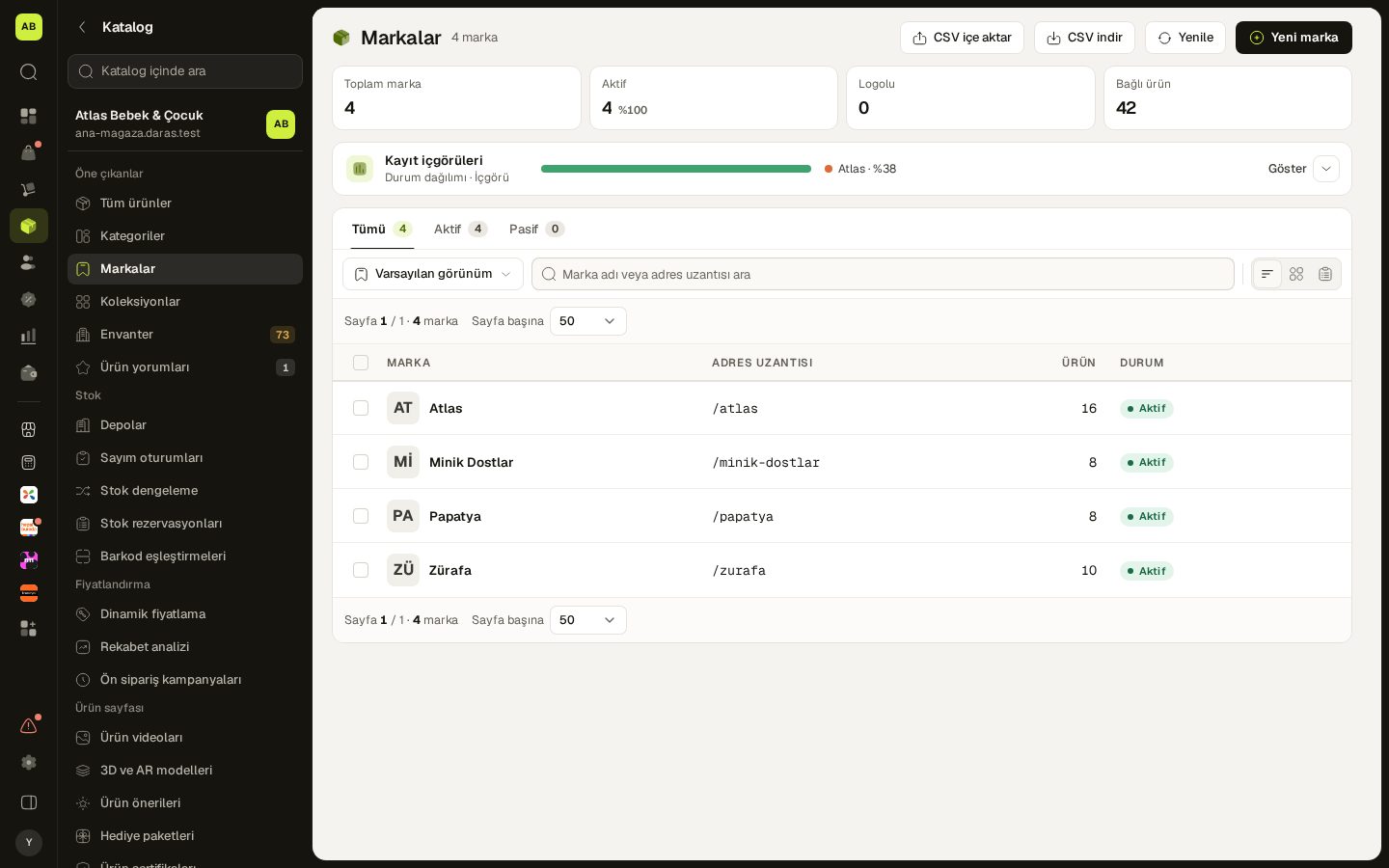
- To upload a large number of brands at once, click the CSV ile aktar (Import via CSV) button in the top right of the Markalar (Brands) page.
- Select the file you prepared following the sample CSV template and start the import.
- If you use an XML supplier, you can also have brands created automatically from the XML feed via the Kategori ve marka (Category and brand) tab inside XML İçe Aktarım (XML Import).
Step 3: Link Products to a Brand
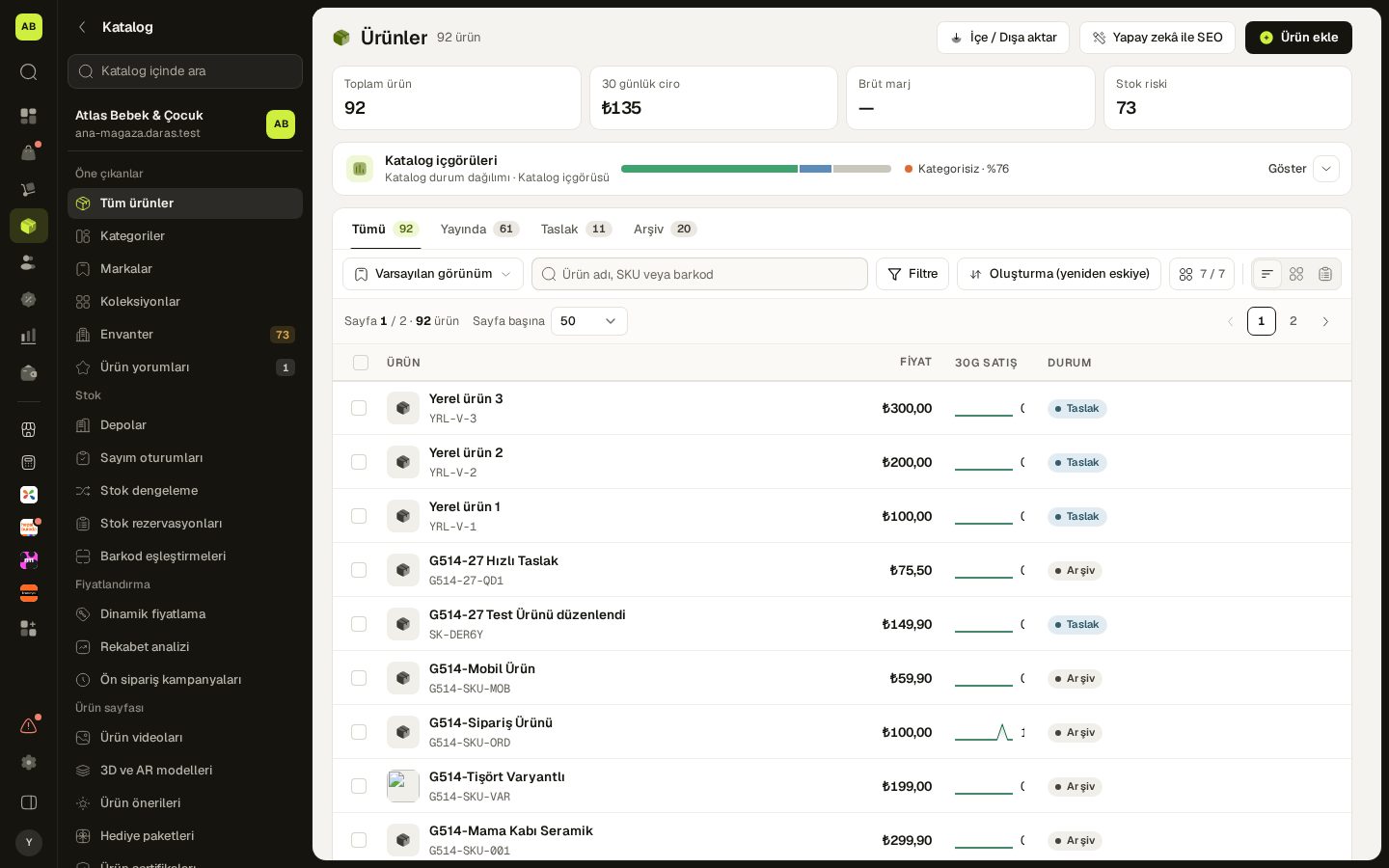
- For a single product: On the product edit page, select the brand from the Marka (Brand) dropdown in the Organizasyon (Organization) card and save.
- In bulk: Select products in the Katalog → Ürünler (Catalog → Products) list and click the Marka button in the top bar to assign the same brand to all selected products with a single click.
Common Issues and Solutions
| Issue / Warning | Cause | Solution |
|---|---|---|
| "Bu marka adı / adres uzantısı zaten mevcut" ("This brand name / URL slug already exists") | Another brand with the same name or the same URL slug has already been added. | Find and edit the existing brand using the search box, or choose a different URL slug. |
| Brand did not match when sending products to a marketplace | The spelling of the brand in your store differs from the spelling in the marketplace's brand catalog. | Make sure the brand field on your products is not blank, and select the corresponding marketplace brand on the Pazaryeri kanalları (Marketplace channels) page before sending products. |
Tips
- Fill in brand pages for SEO: Adding a 1–2 paragraph introduction instead of leaving brand description fields blank helps you capture free organic traffic from customers searching directly for the brand name on Google.