
How to create and sort categories and collections and write SEO copy with AI
To help customers reach the product they are looking for in seconds and help your category pages rank higher on Google, you should structure your Kategoriler (Categories) and Koleksiyonlar (Collections) cleanly.
1. Creating a Category and Subcategory Tree
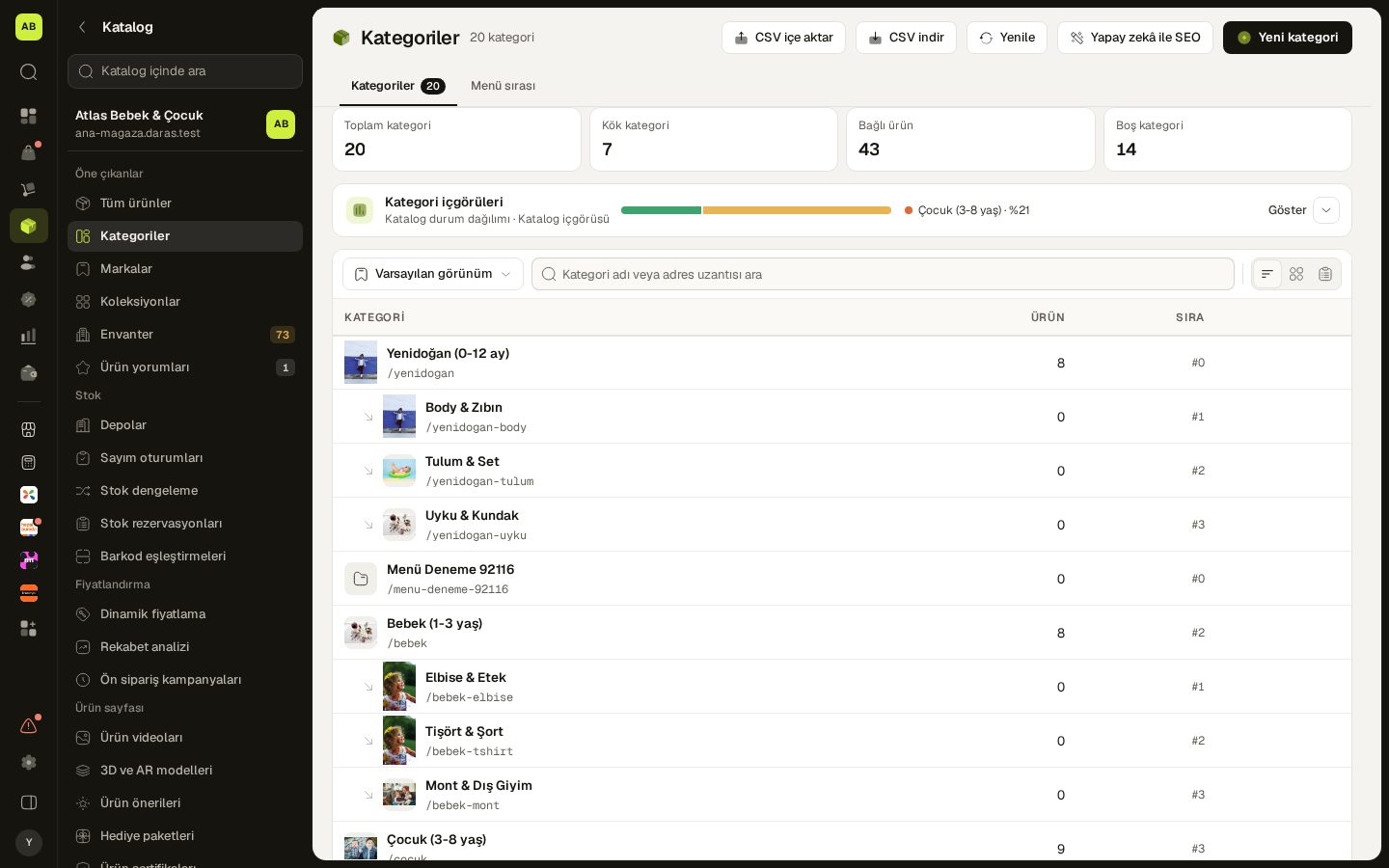
- From the left menu, go to the Ürünler → Kategoriler (Products → Categories) page.
- Click Yeni kategori (New category) in the top right, or İlk kategoriyi ekle (Add first category) during initial setup.
- Enter the Kategori adı (Category name); if you are creating a subcategory, choose its parent branch from the Üst kategori (Parent category) selector.
- To boost the category page's Google ranking, click the Yapay zekâ ile SEO (SEO with AI) button in the top bar; the category description and meta titles are generated automatically.
- To reorder how categories appear in menus, use the Yukarı taşı (Move up) / move down buttons on the category row; for bulk operations, use the CSV içe aktar (Import CSV) and CSV indir (Download CSV) buttons.
2. Creating Collections and Managing Status in Bulk
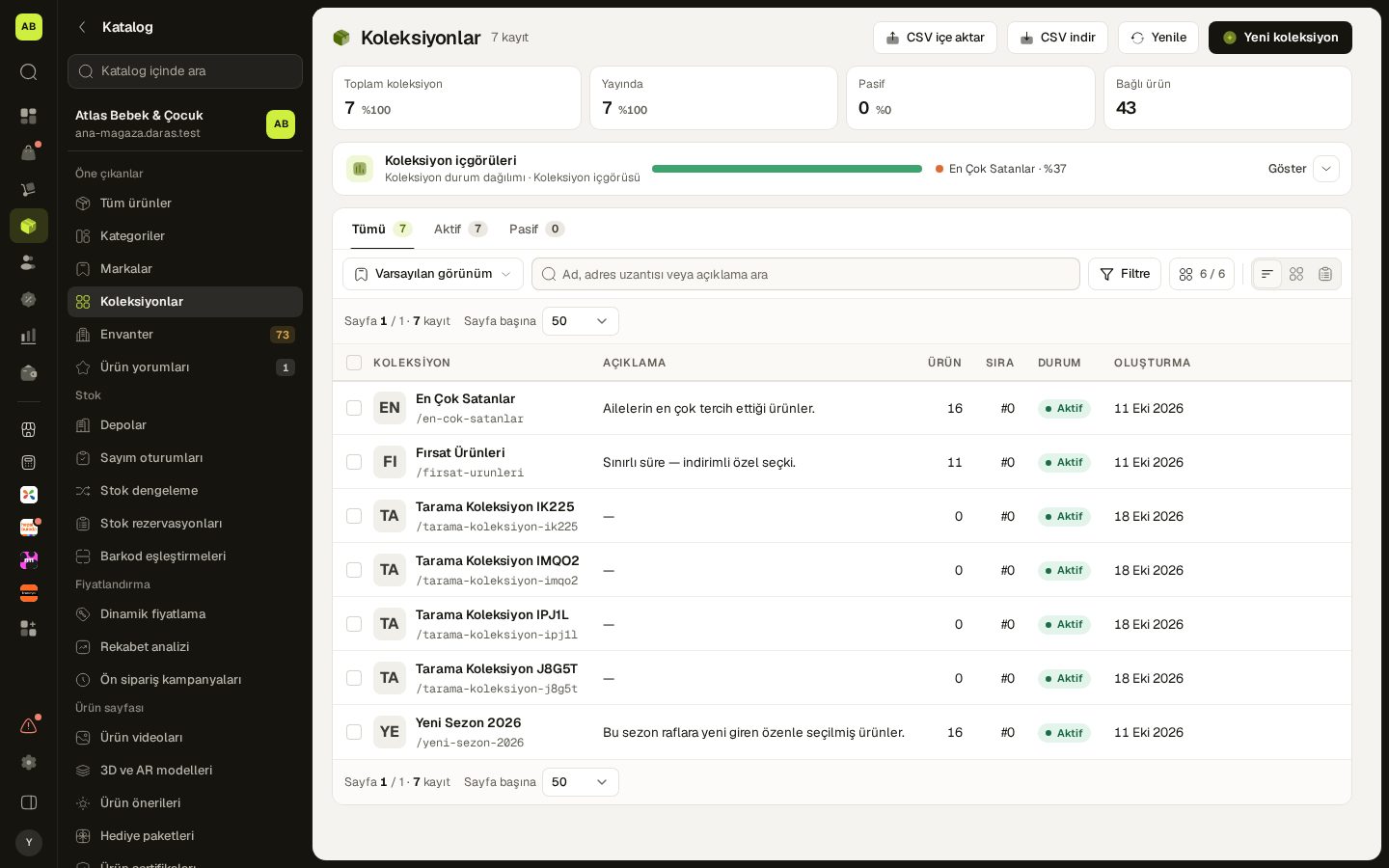
- Go to Ürünler → Koleksiyonlar (Products → Collections) and click the Yeni koleksiyon (New collection) button.
- Enter the collection title, cover image, and description (you can use Yapay zekâ ile yaz (Write with AI) in the description field).
- Link products to the collection either Elle seçerek (Manual selection) or with a Koşullu (Otomatik) (Automated / Rule-based) rule (for example, "Discount rate greater than 20%" or "Tagged 'New Season'").
- When a campaign period ends, instead of deleting collections, select them in the list and click Pasifleştir (Deactivate), then publish them again with a single click using Aktifleştir (Activate) when the campaign returns.
Common Issues and Solutions
| Issue | Cause | Solution |
|---|---|---|
| My newly created category does not appear in the storefront top menu | The top menu may be using a custom navigation list | Add the new category to the top menu on the Vitrin → Menüler (Storefront → Menus) page. |
| Category cannot be deleted and shows a "Bu kategoride ürün var" (This category contains products) warning | Products are still assigned to the category; deletion is blocked so products are not left uncategorized | Filter by this category on the Products page, move the products to another category, and then delete the category. |
| Category cannot be deleted and shows an "alt kategorileri var" (has subcategories) warning | Other categories exist under this category | Move the subcategories to another parent category or delete them first. |
| Category cannot be created and shows an "adres (kısa ad) başka bir sayfa, ürün, kategori ya da marka tarafından kullanılıyor" (URL slug is already used by another page, product, category, or brand) warning | URLs in your store share a common namespace: another category, product, page, or brand is already using the same slug (e.g., /salads) | Click the pencil icon next to the URL slug to enter a different slug, or edit the existing category. Slugs of deleted categories are freed up and can be reused. |
| Expected products did not appear in an automated collection | The tag or stock condition specified in the rule does not match the products | Check the condition on the collection edit screen ("Herhangi bir koşulu sağlasın" (Match any condition) instead of "Tüm koşulları sağlasın" (Match all conditions)). |
Tips
- Adding an informative 150–250-word guide at the bottom of your category pages using the Yapay zekâ ile SEO tool increases your organic traffic for high-volume category searches.