
How to add new products (Complete A-to-Z Guide for Single, Variant, Bulk, and XML)
Short answer: To add a new product to your store, go to Katalog → Ürünler (Catalog → Products) from the left menu and click the Ürün ekle (Add product) button in the top right. You can add single items or products with color/size variants directly from this form, or upload hundreds of items in bulk using XML İçe Aktarım (XML Import) or CSV / Excel tools.
Method 1: Adding a Single Product (Step by Step)
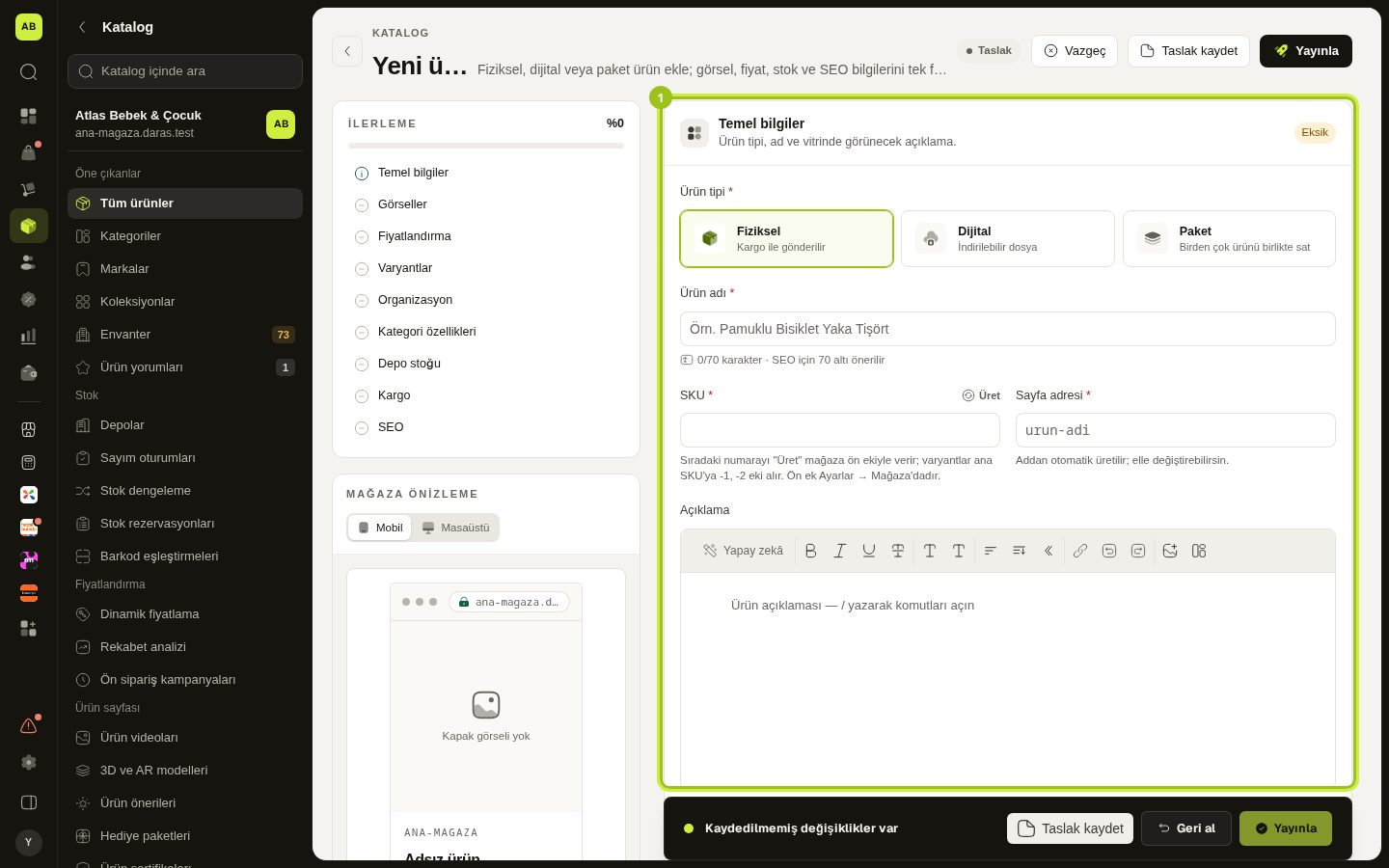
Step 1: Open the Add Product Form and Enter Basic Details
- Click Katalog → Ürünler in the left menu and press the Ürün ekle button in the top right.
- In the Temel bilgiler (Basic information) card, select the Ürün tipi (Product type):
- Fiziksel (Physical): For standard shippable items (default).
- Dijital (Digital): For items delivered as downloadable files or license keys.
- Paket (Bundle): For sets or box products combining multiple items together.
- In the Ürün adı (Product name) field, enter a clear title that customers will see on your storefront and marketplaces (for example:
Organic Cotton Baby Blanket 90x100 cm). - Enter your own stock code in the SKU (SKU) field, or click the Üret (Generate) button on the right to generate a code automatically.
- The Sayfa adresi (Page URL) (URL slug) is generated automatically from the product name; click Düzenle (Edit) if you want to customize it.
- In the Açıklama (Description) field, describe the product's fabric/material details, key benefits, and package contents.
Step 2: Upload Product Images and Edit with AI
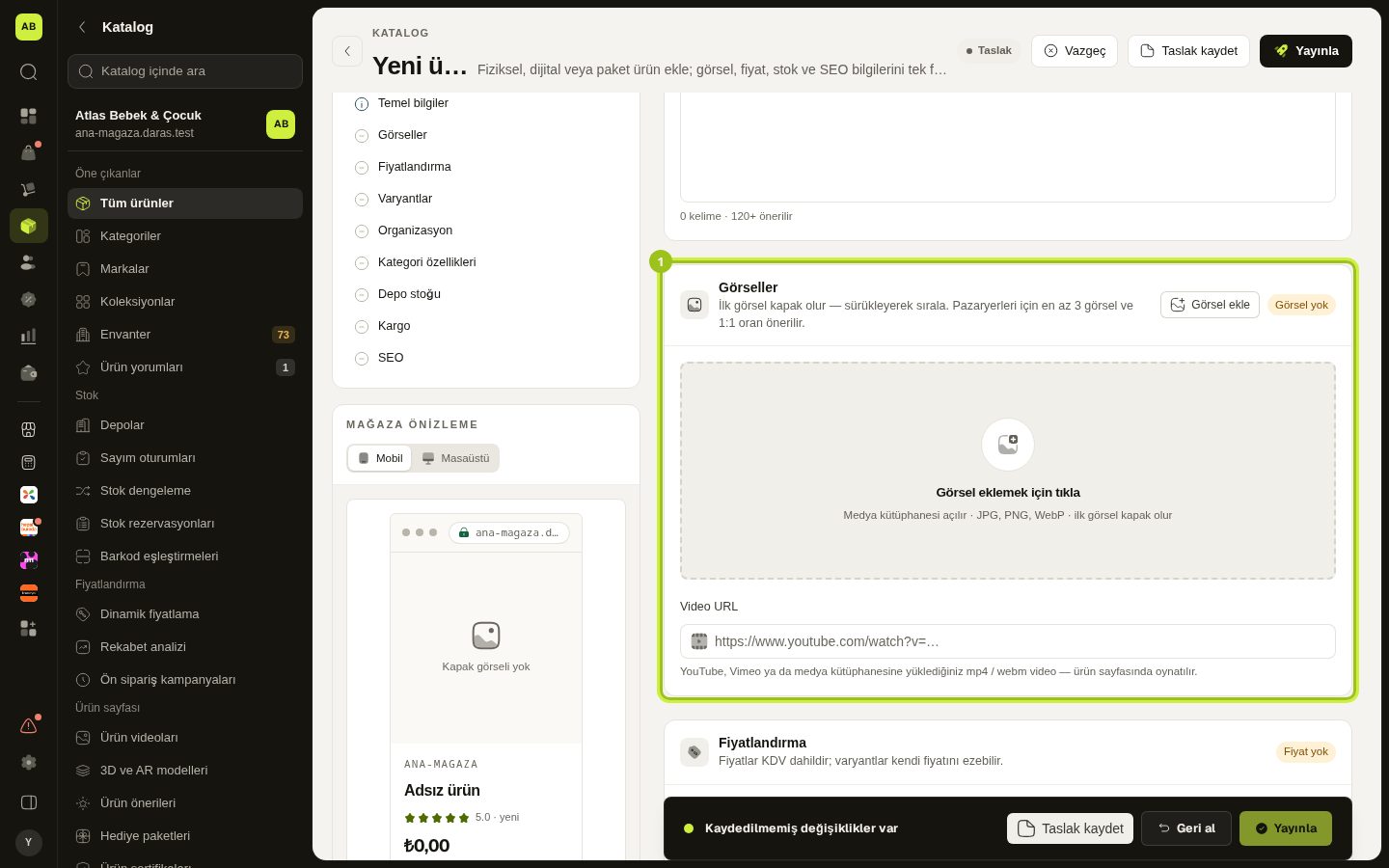
- Click the Görsel ekle (Add image) area on the Görseller (Images) card, or drag and drop photos from your computer.
- The first photo is automatically set as the Kapak (Cover) image; drag photos to reorder them.
- To remove a photo's background or give it a studio look, click the Yapay zekâ ile düzenle (Edit with AI) button on the image.
- If the product has a promotional video, paste the YouTube or MP4 link into the Video URL (Video URL) box.
Step 3: Set Pricing, Cost, and VAT Rate
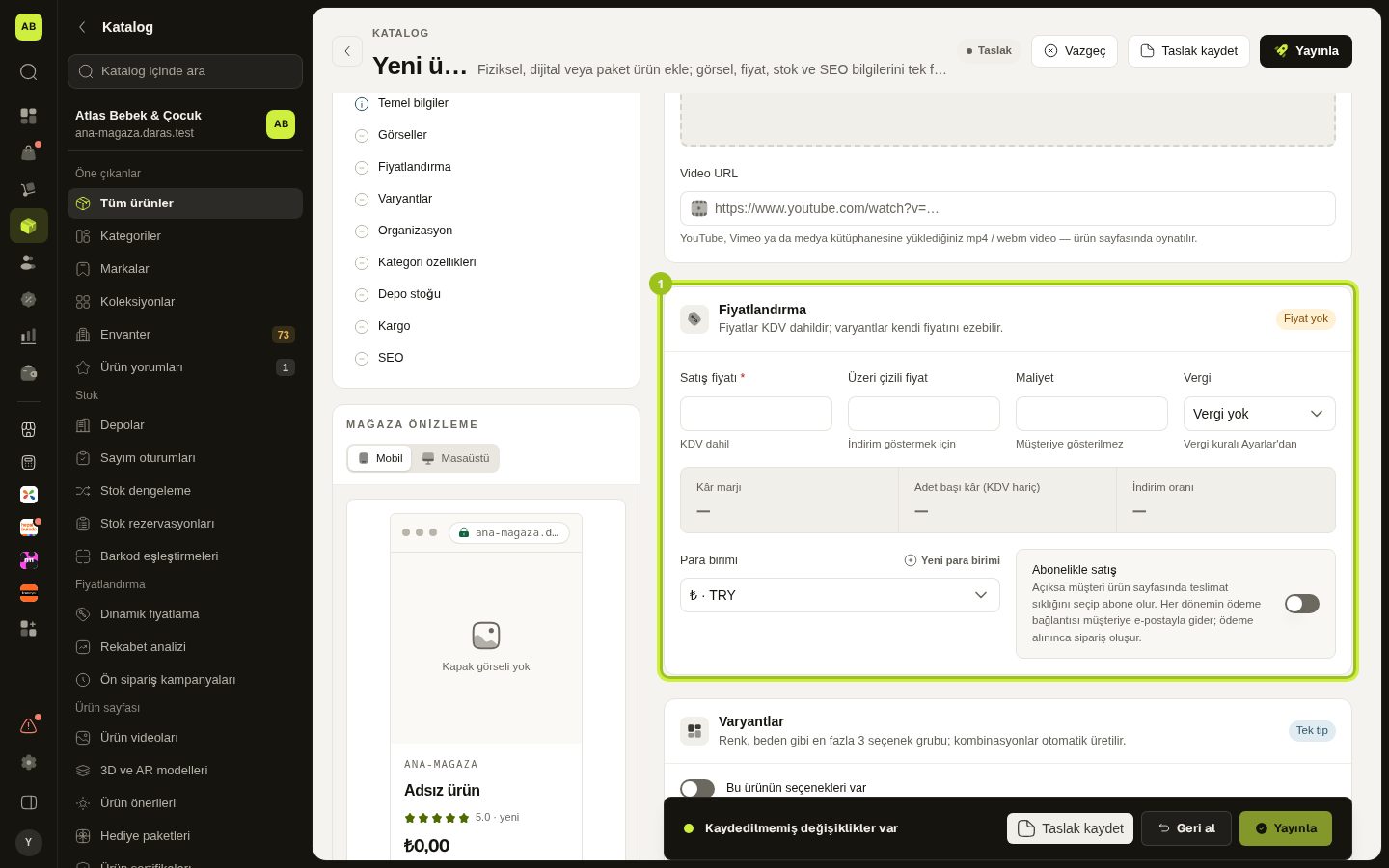
- In the Satış fiyatı (Sale price) field on the Fiyatlandırma (Pricing) card, enter the VAT-inclusive sale price the customer will pay.
- If you want to show a markdown, enter the original undiscounted price in Üzeri çizili fiyat (Compare-at price) (an automatic discount percentage badge will appear on storefront cards).
- Enter the purchase/manufacturing cost in Maliyet (Cost) (this is never shown to customers; it is used to calculate your net profit in reports and marketplace pricing rules).
- Select the product's VAT rate (
20%,10%, or1%) from the Vergi (Tax) field. - If the product is replenished on a recurring schedule (e.g., coffee, pet food, vitamins), check Abonelikle satışa izin ver (Allow subscription sales).
Step 4: Select Category, Brand, and Required Category Attributes
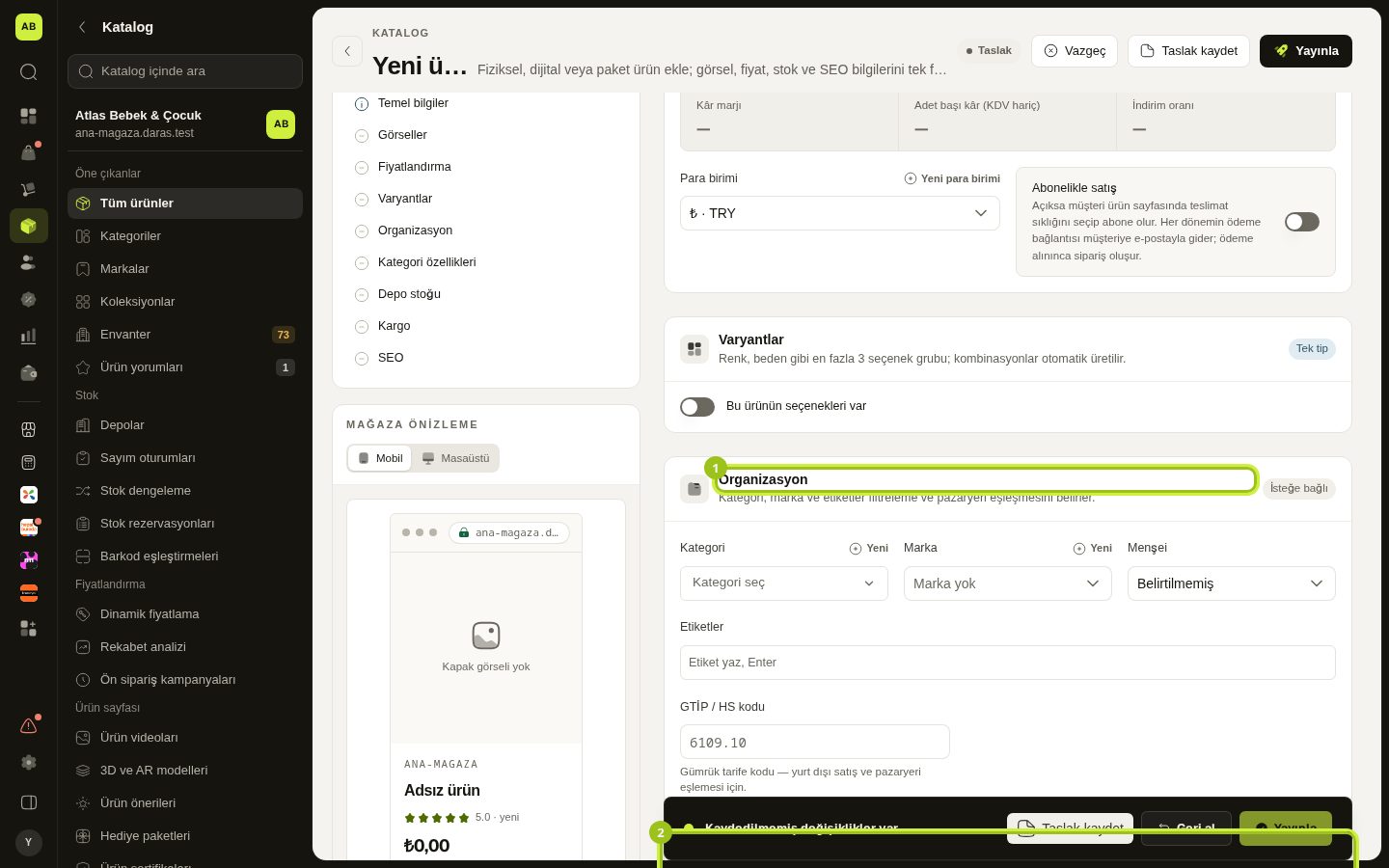
- In the Organizasyon (Organization) card in the right column, choose the product's category from the Kategori (Category) dropdown; if the category doesn't exist yet, create it on the spot with the Yeni (New) button next to it.
- Choose the product's brand under Marka (Brand), and fill in Menşei (Country of origin) (e.g.,
TR) and Etiketler (Tags). - As soon as you select a category, the Kategori özellikleri (Category attributes) card opens in the form.
- Fill in the attributes on this card (such as
Material,Fit,Pattern,Warranty Period). Attributes marked as required are needed so the product can be published cleanly on both your storefront and marketplaces.
Step 5: Enter Warehouse Stock and Shipping / Barcode Information
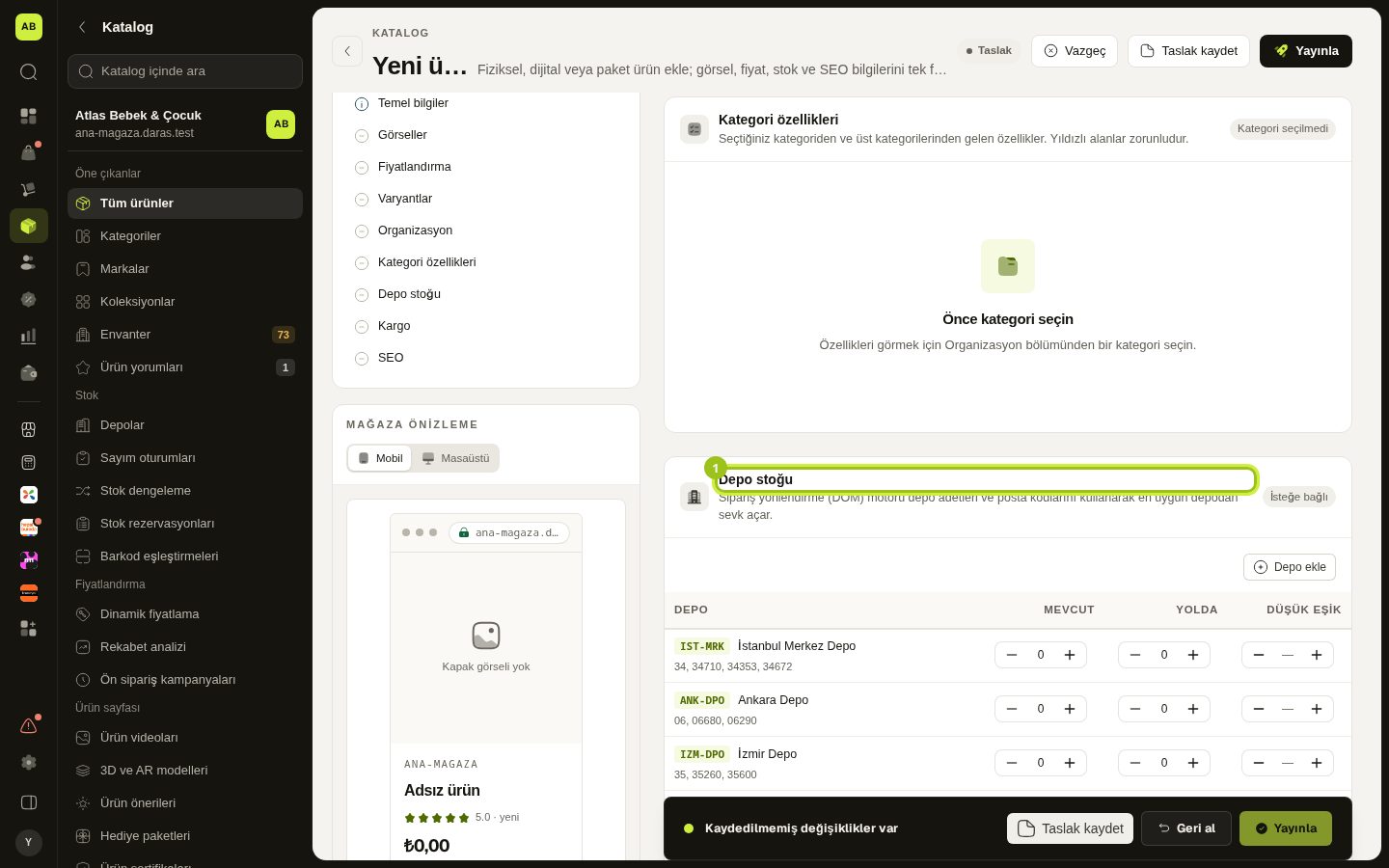
- On the Depo stoğu (Warehouse stock) card, enter the sellable stock quantity in Mevcut (Available) next to your primary warehouse, and enter the threshold at which you want low-stock alerts (e.g.,
5) in Düşük eşik (Low stock threshold). If you have multiple warehouses, click Depo ekle (Add warehouse) to enter quantities for additional locations. - On the Kargo (Shipping) card, enter Ağırlık (kg) (Weight (kg)) along with En (cm) (Width (cm)), Boy (cm) (Length (cm)), and Yükseklik (cm) (Height (cm)); the system calculates shipping volumetric weight (desi) automatically.
- Scan the package barcode into Barkod (EAN / UPC) (Barcode (EAN / UPC)), or click Üret on the right if you don't have one.
- Click Yayınla (Publish) in the top-right corner to put the product on sale right away (or click Taslak kaydet (Save draft) to save it for publishing later).
Method 2: Adding a Product with Color and Size Variants
If your product comes in multiple colors, sizes, shoe sizes, or dimension options:
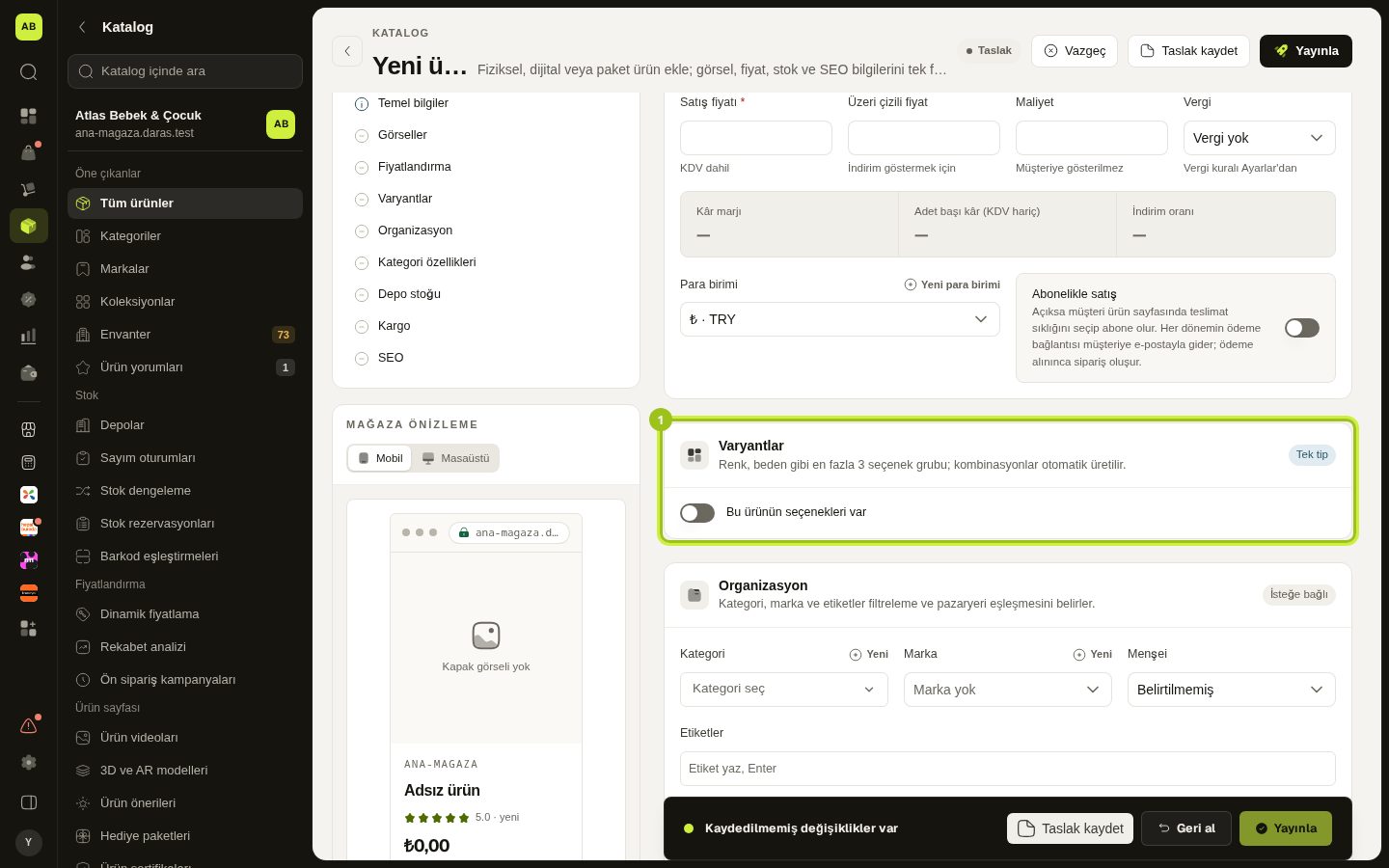
- On the Varyantlar (Variants) card of the add product page, turn on the Bu ürünün seçenekleri var (This product has options) toggle.
- Click Seçenek grubu ekle (Add option group):
- For the first group, enter
Renk(Color), add the colors (Black,White,Navy) into the values box, and check Renk grubu — renk örneği göster (Color group — show color swatch). - For the second group, click Seçenek grubu ekle again, enter
Beden(Size), and add the sizes (S,M,L,XL).
- For the first group, enter
- Click Kombinasyonları üret (Generate combinations) (or Uygula (Apply)), and every color–size combination is generated automatically in the table below.
- In the variant table, enter individual Fiyat (Price), Stok (Stock), SKU, and Barkod (Barcode) values for each row, or use the bulk fill bar above the table to apply the same price/stock across all variants in one click.
Method 3: Bulk Adding Products via XML or Excel/CSV
Instead of entering hundreds or thousands of items one by one, use the bulk import tools:
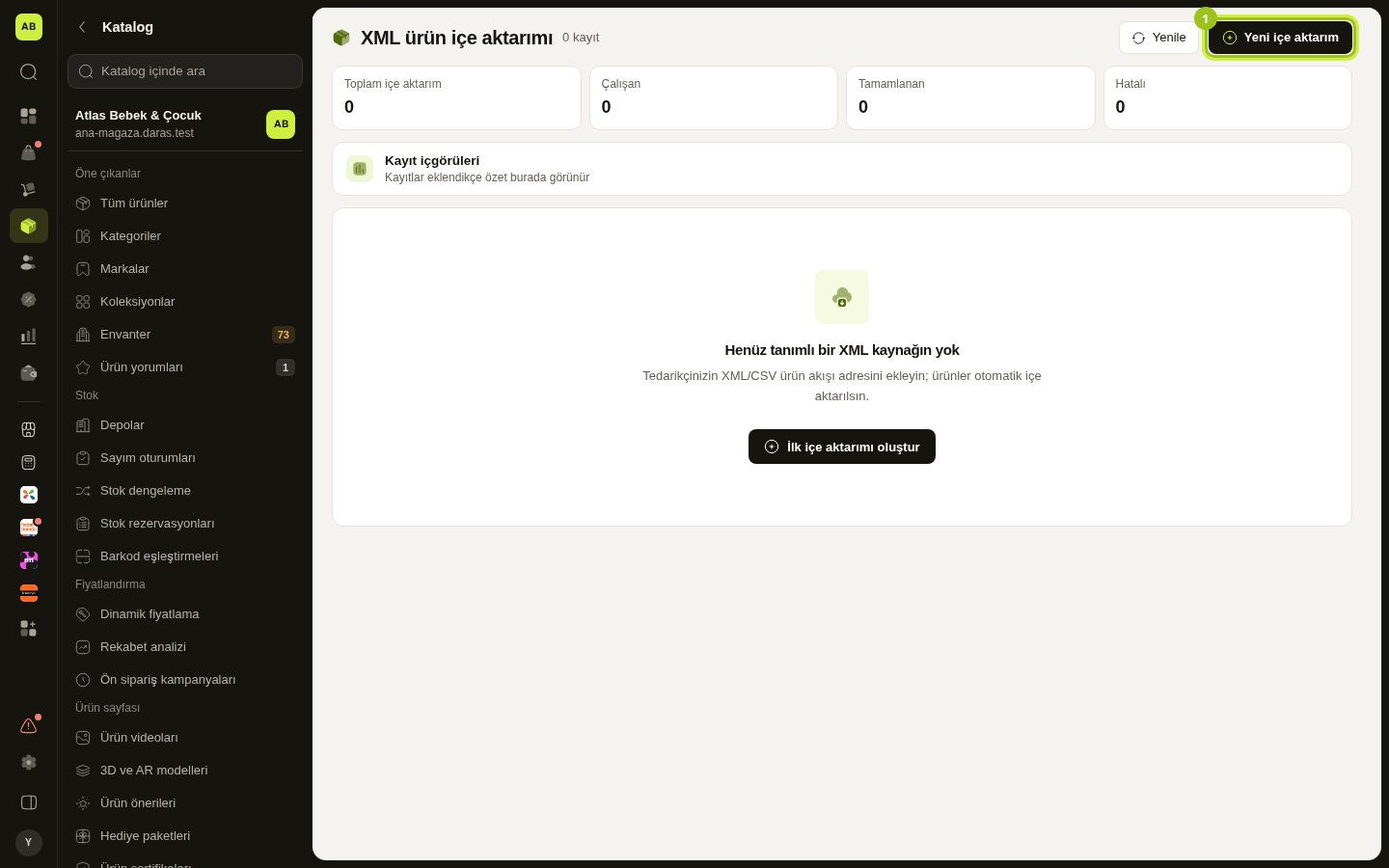
- Automated Import via Supplier XML: Go to Katalog → XML İçe Aktarım (Catalog → XML Import) in the left menu and click Yeni içe aktarım (New import). Paste your XML URL and click Otomatik tespit et (Auto-detect), set your profit margin on the Kurallar (Rules) tab, verify on the Deneme (Dry run) tab, and click Kaydet ve çalıştır (Save and run).
- Import via CSV / Excel File: Go to Katalog → Ürünler in the left menu, open the İçe aktar (Import) screen, download and fill in the sample template, and upload your file.
- Autofilling Missing Attributes: If category attributes came in blank on bulk-imported products, open Katalog → Özellikleri otomatik doldur (Catalog → Autofill attributes) and click Boş özellikleri tara (Scan missing attributes) and Önerilenlerin hepsini uygula (Apply all suggested) to complete missing fields in seconds.
Common Issues and Solutions
| Issue / Warning | Cause | Solution |
|---|---|---|
| "Kategori özellikleri eksik — Yayınlamadan önce zorunlu özellikleri doldurun" ("Missing category attributes — Fill in required attributes before publishing") | At least one attribute marked as required in the selected category was left blank. | Scroll down to the Kategori özellikleri card in the form, fill in the required fields highlighted in red, and click Yayınla again. If many products are missing attributes, run Katalog → Özellikleri otomatik doldur. |
| "Bu SKU / Barkod başka bir üründe kullanılıyor" ("This SKU / Barcode is already in use on another product") | The entered SKU or barcode is already registered on another product or variant in your store. | Click the Üret button next to SKU or Barkod (EAN / UPC) to generate a new unique code. |
| Main stock field became disabled after adding variants | On products with variants, total inventory is calculated automatically as the sum of variant stock levels. | Enter the stock quantity next to each color/size row in the Varyantlar table. |
| Product was saved but does not appear on the store's storefront | The product was saved with Taslak kaydet or its category has not been added to the storefront menu. | Click Yayınla in the top-right corner of the product edit page and verify that the product's stock quantity is greater than 0. |
Tips and Related Articles
- Bulk SEO with AI: After adding your products, select them on the Katalog → Ürünler page and click the Yapay zekâ ile SEO (SEO with AI) button at the top to generate search engine titles and descriptions for all your products in one go.
- Related step-by-step guides: