
How to set up virtual POS, cash on delivery, and bank transfer end to end (A-to-Z Guide)
Short answer: To accept payments by credit card, digital wallet, and bank transfer in your store, simply save and enable your virtual POS API keys and bank IBAN accounts on the Ayarlar → Ödeme yöntemleri (Settings → Payment methods) screen. Then complete your Taksit oranları (Installment rates) and Dijital cüzdanlar (Digital wallets) settings to take your checkout live.
Step-by-Step Payment and Collection Setup (A to Z)
Step 1: Connect and Test Your Virtual POS Provider
- From the left menu, go to the Ayarlar → Ödeme yöntemleri screen.
- Select your payment institution (iyzico, PayTR, Param, Sipay, Moka, Paynet) or direct bank virtual POS.
- Enter the Mağaza No (Merchant ID), API Anahtarı (API Key), and Gizli Anahtar (Secret Key) obtained from your provider's dashboard, leave the 3D Secure option enabled, and click the Kaydet (Save) button.
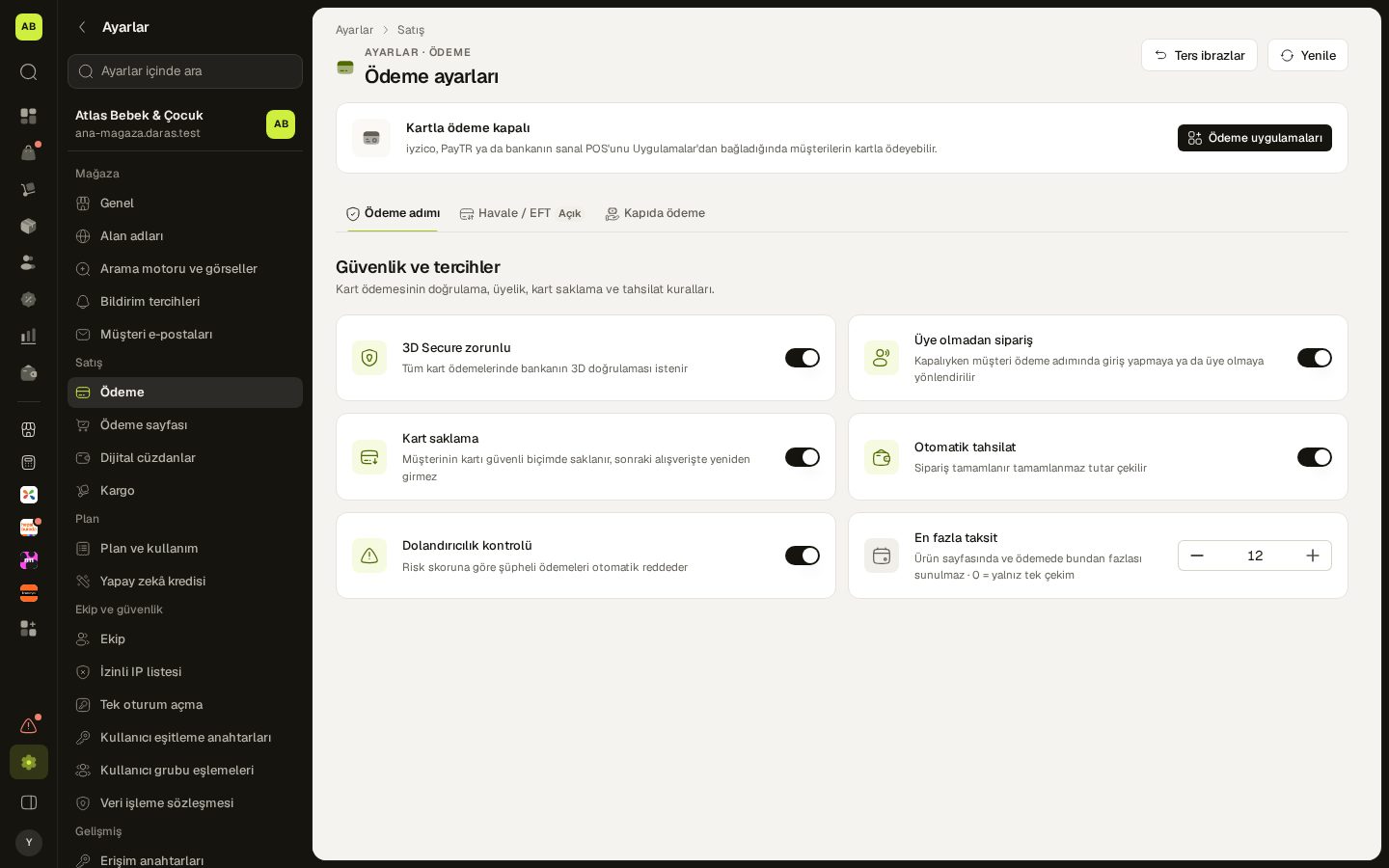
Step 2: Enable Installment Options and Digital Wallets (Apple Pay / Google Pay)
- Go to the Ödemeler → Taksit oranları (Payments → Installment rates) page and define installment commission rates by card family.
- Enable Apple Pay and Google Pay express payment methods on the Ayarlar → Dijital cüzdanlar (Settings → Digital wallets) screen to boost mobile conversion.
- Use the Ödemeler → Ödeme bağlantıları (Payments → Payment links) screen to send one-click payment links to customers reaching out by phone or social media.
Step 3: Configure Bank Transfer and Checkout Rules
- On the Ayarlar → Ödeme yöntemleri page, open the Banka Havalesi / EFT (Bank Transfer) section and save your company legal name and IBAN number.
- From the Ayarlar → Ödeme adımı (Settings → Checkout) page, configure guest checkout permissions, required address fields, and in-cart upsell offers.
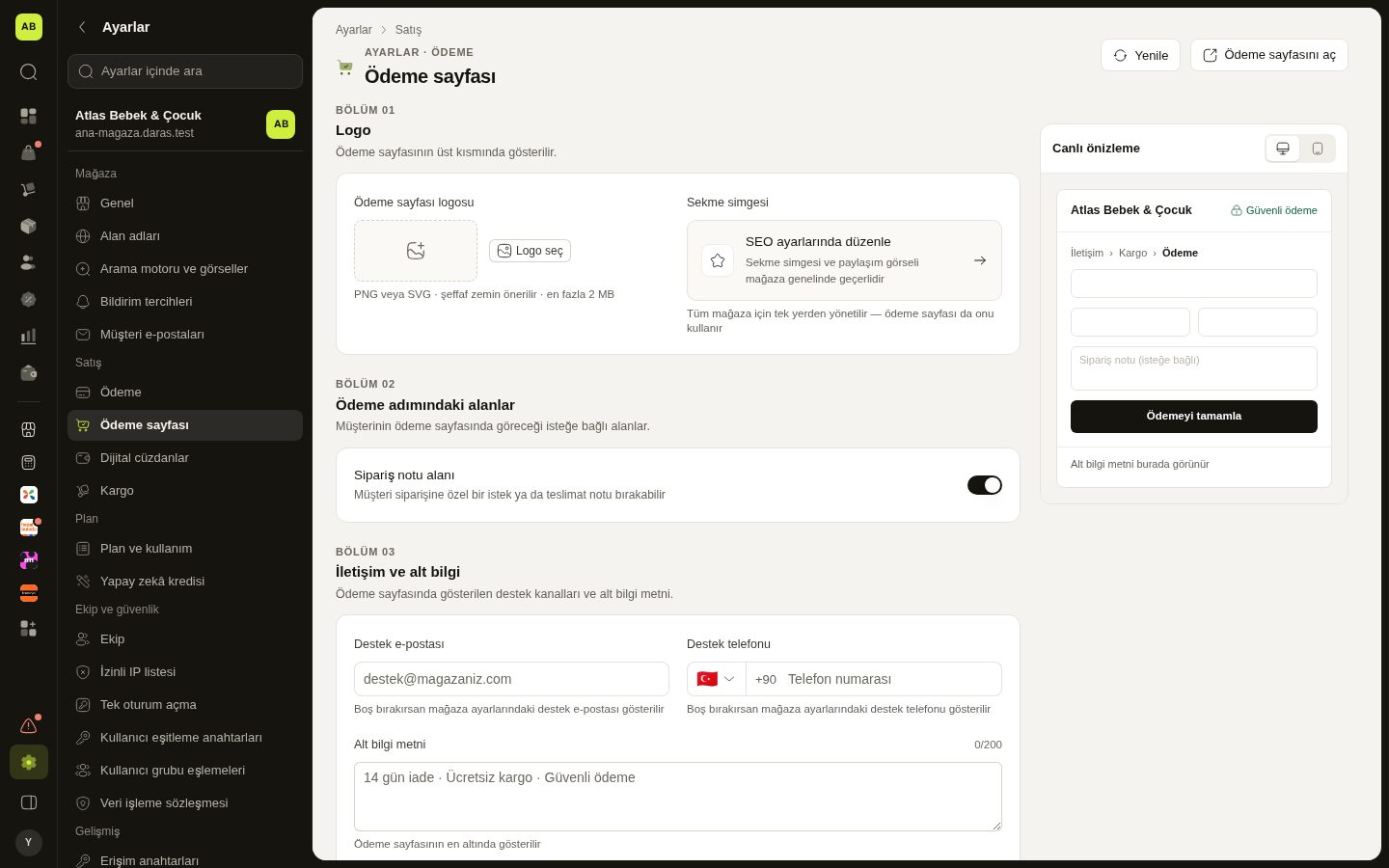
Step 4: Manage Payment Reconciliation, Fraud Rules, and Chargebacks
- Use the Ödemeler → Mutabakat (Payments → Reconciliation) screen to compare payouts deposited into your bank account by your provider against your orders.
- Manage risk rules on the Ödemeler → Güvenlik kuralları (Payments → Security rules) page to filter suspicious transactions, and respond to bank disputes with supporting evidence from the Ters ibrazlar (Chargebacks) screen.
Common Issues and Solutions
| Issue / Warning | Cause | Solution |
|---|---|---|
| The 3D Secure verification screen does not open | The callback URL is not configured in the virtual POS provider's dashboard, or test keys were used in live mode. | Verify the callback URL in your provider's dashboard and save the live API keys on the Ayarlar → Ödeme yöntemleri screen. |
| Installment options do not appear at checkout | The product category is subject to statutory installment restrictions, or the card's BIN number did not match a commercial/individual installment rule. | Check on the Taksit oranları page that the installment rows for the relevant card brand are active. |