
How to manage the physical store POS sales screen, register shifts, and devices
For businesses operating both a physical store (boutique, pet shop, stationery store, showroom) and an e-commerce site, the Daras POS (Satış Noktası) (Point of Sale) module lets you manage register sales and online inventory from a single hub.
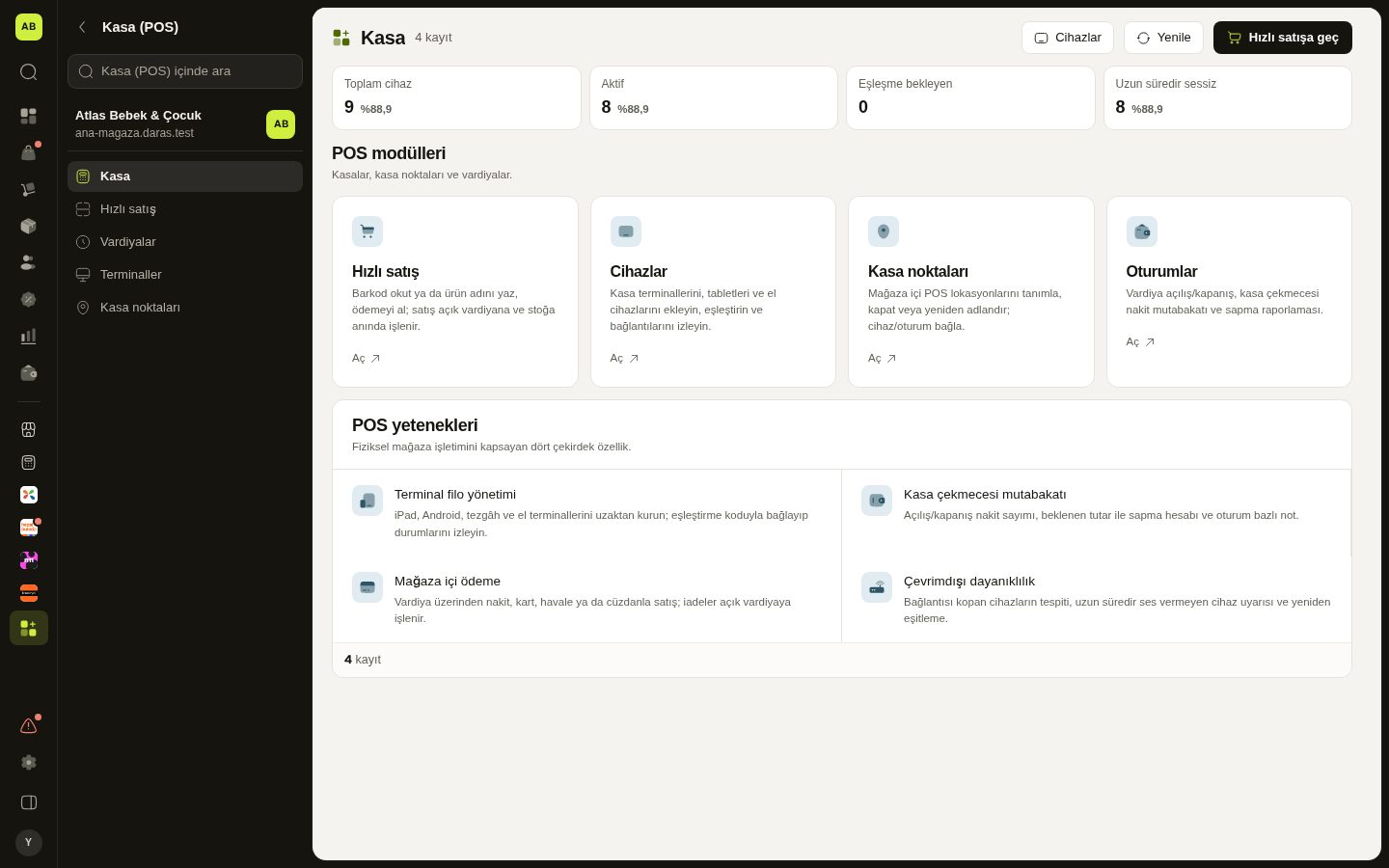
1. Setting Up POS Branches and Devices
- From the left menu, go to POS → Şubeler (POS → Branches) and map your physical store to the corresponding inventory warehouse.
- Register the computers, tablets, or handheld terminals you will use at the register on the POS → Cihazlar (POS → Devices) screen.
- Monitor your overall POS summary and daily store revenue from the POS Genel Bakış (POS Overview) page.
2. Opening a Register Shift and Fast Barcode Checkout
- At the start of the day, click the Kasa aç (Open register) button on the POS → Kasa oturumları (Vardiyalar) (POS → Register sessions (Shifts)) screen and enter the starting change (float) amount in the drawer.
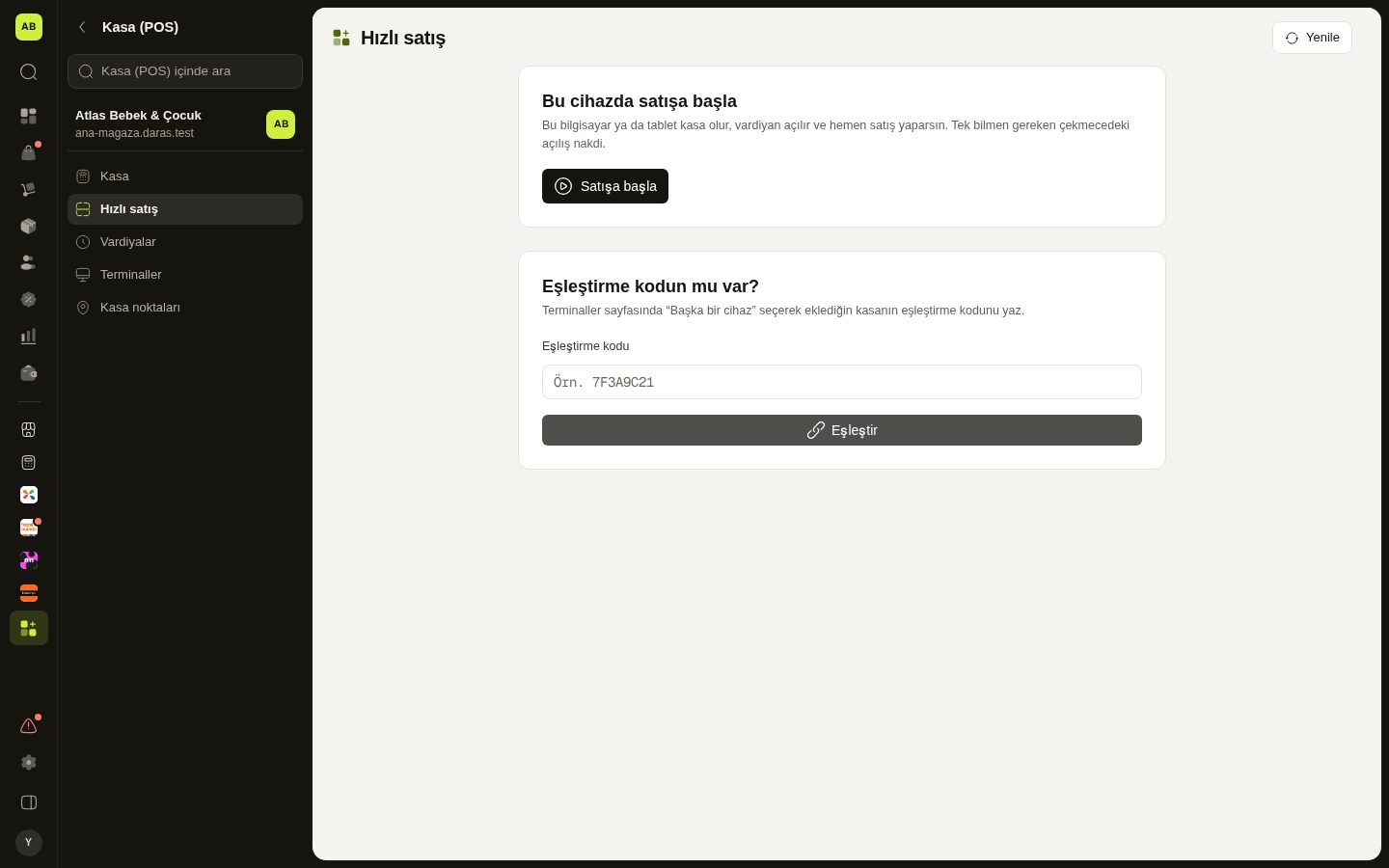
- Switch to the POS → Satış ekranı (POS → Sales screen) page:
- Scan the product barcode or tap the product name/category on the screen to add it to the cart.
- If the customer will redeem loyalty points or needs an e-archive invoice issued in their name, select the customer at the top.
- Complete the sale using Nakit (Cash), Kredi Kartı (Fiziksel POS) (Credit Card — Physical POS), or Parçalı Ödeme (Split Payment) (part cash, part card).
- At the end of the day, press the Vardiyayı kapat (Close shift) button on the Kasa oturumları (Register sessions) screen to record your Z report / end-of-day reconciliation.
Common Issues and Troubleshooting
| Issue | Cause | Solution |
|---|---|---|
| Scanning with a barcode scanner does not add the product to the cart | The barcode field on the product's variant card is empty, or the cursor is not focused on the search box | Assign the barcode on the product card; make sure "Otomatik barkod odaklama" (Auto barcode focus) mode is enabled on the POS sales screen. |
| No e-archive invoice was generated after a POS sale | An "Nihai Tüketici" (End Consumer) sale was completed without selecting a customer and the automatic invoicing rule is off | Enable automatic e-archive invoice generation for POS sales under E-fatura ayarları (E-invoice settings). |
Tips
- Even if your internet connection in the store drops momentarily, your cart on the POS screen is preserved; once the connection returns, the sale and stock deduction sync automatically.