
How to bulk edit products, generate SEO with AI, and undo bulk changes
Short answer: To update the price, stock, category, brand, or SEO copy of multiple products at once, check the product boxes on the Katalog → Ürünler (Catalog → Products) page and use the bulk action bar that appears at the top. If you make a mistake in a bulk update, you can immediately revert to the previous values with the Geri al (Undo) button on the Katalog → Toplu düzenleme geçmişi (Catalog → Bulk edit history) screen.
Bulk Editing Products and Undoing Changes Step by Step
Step 1: Filter and Select Products
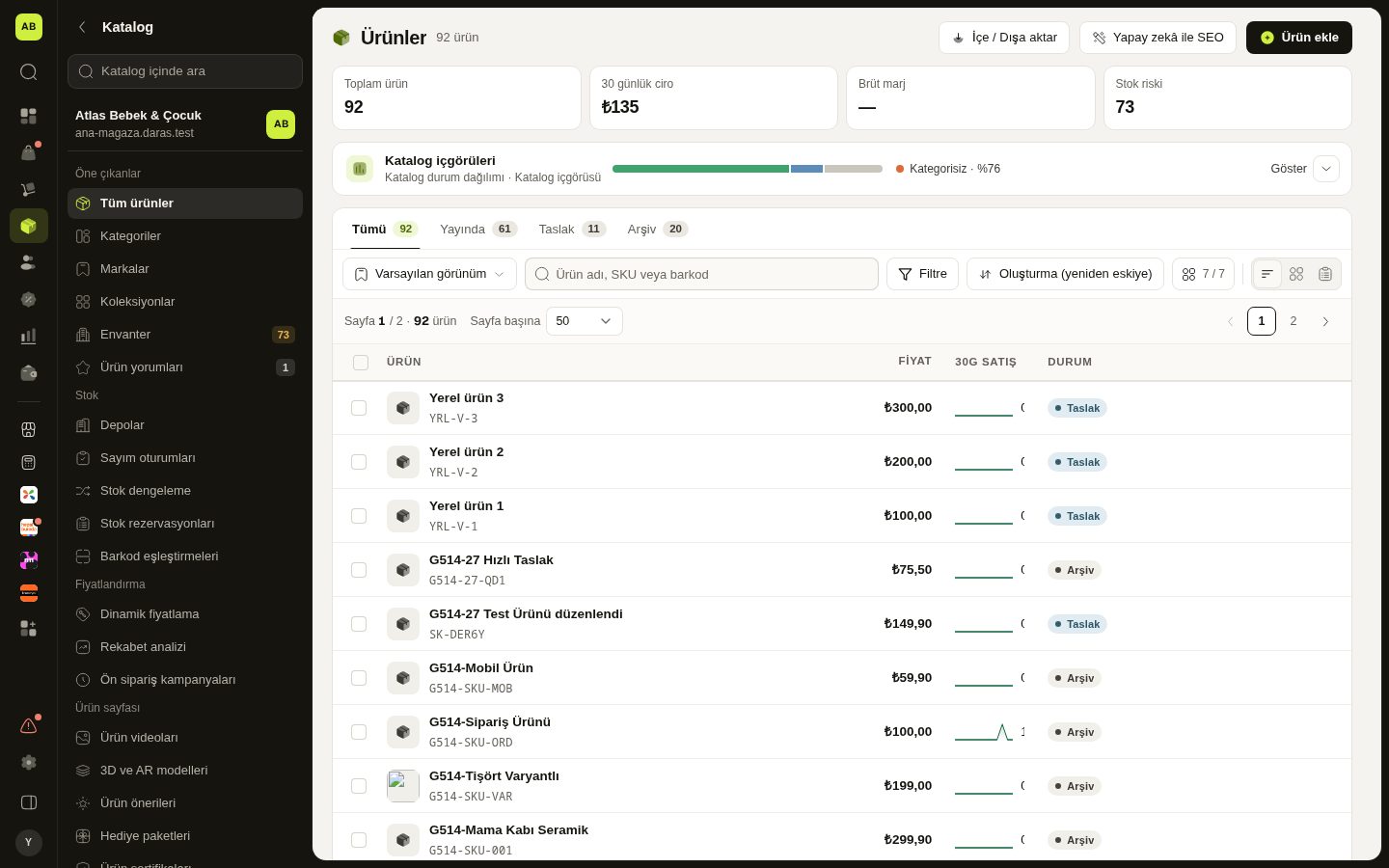
- From the left menu, go to the Katalog → Ürünler screen.
- If you want to edit a specific group, narrow down the list using the Kategori (Category), Marka (Brand), or status tabs at the top (
Tümü(All),Yayında(Published),Taslak(Draft),Arşiv(Archived)). - Select the products you want to edit using the checkboxes on the left of the table (or click the top checkbox to select all products on the page).
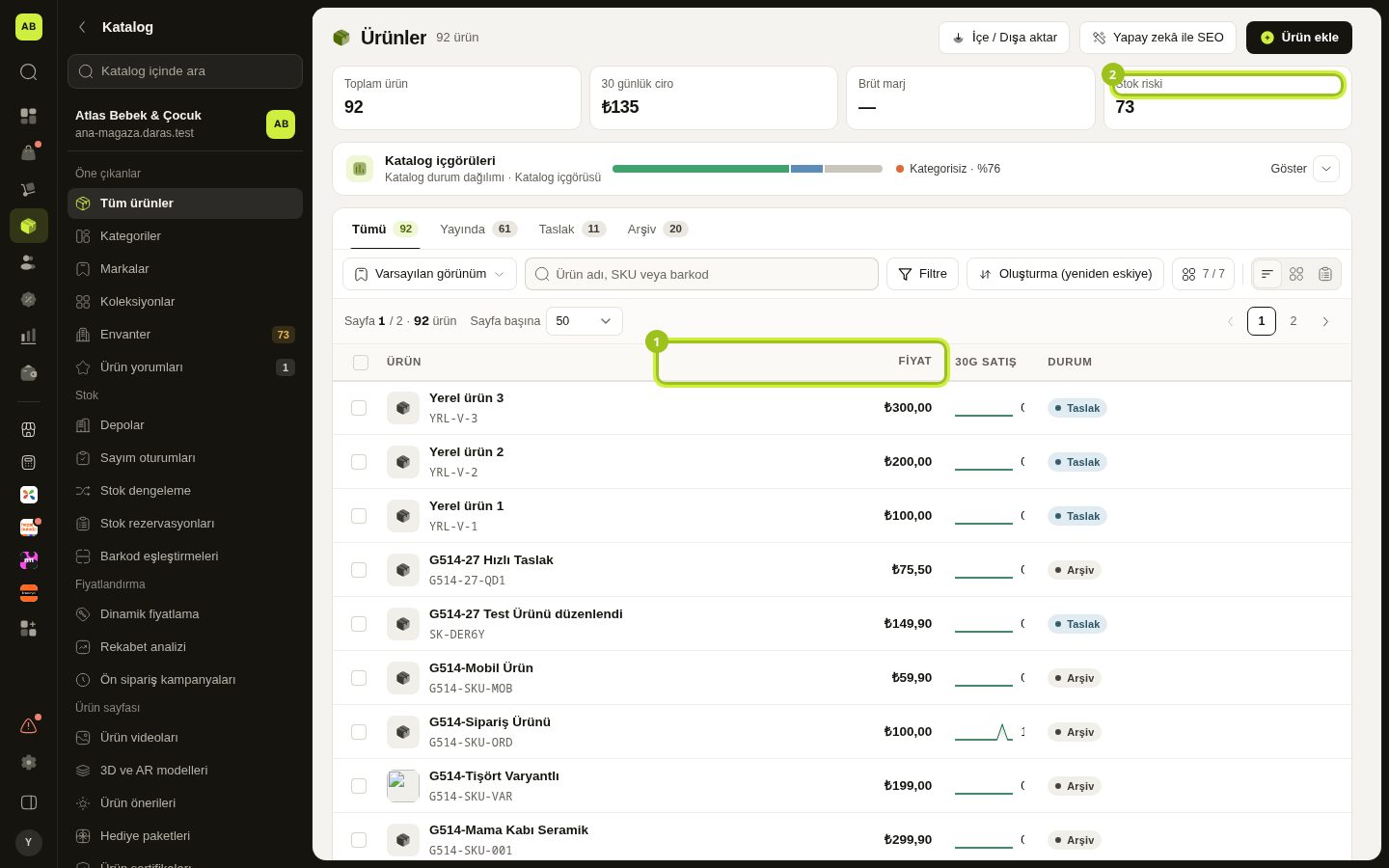
Step 2: Choose the Change from the Bulk Action Bar
Once you select products, click the action you want to apply on the bar that opens above the table:
- Durum (Status): Moves selected products in bulk to
Yayında,Taslak, orArşivstatus. - Kategori / Marka / Etiket (Category / Brand / Tag): Assigns the category, brand, or tags of selected products in one step.
- Fiyat (Price): Increases or decreases the sale prices of selected products by a specific percentage (%) or fixed amount (TRY) and applies
.90/.99rounding. - Stok (Stock): Sets the stock quantity of selected products to a fixed number or adds to / subtracts from current stock.
- SKU oluştur (Generate SKU): Automatically generates unique SKUs for selected products that have no SKU.
- SEO yaz / Yapay zekâ ile SEO (Write SEO / SEO with AI): Automatically generates search engine titles (
SEO başlık(SEO title)) and descriptions (SEO açıklama(SEO description)) for selected products based on product content (you can also launch this across the entire catalog with the Yapay zekâ ile SEO (SEO with AI) button in the top right of the page).
Step 3: Review Bulk Edit History or Undo an Action
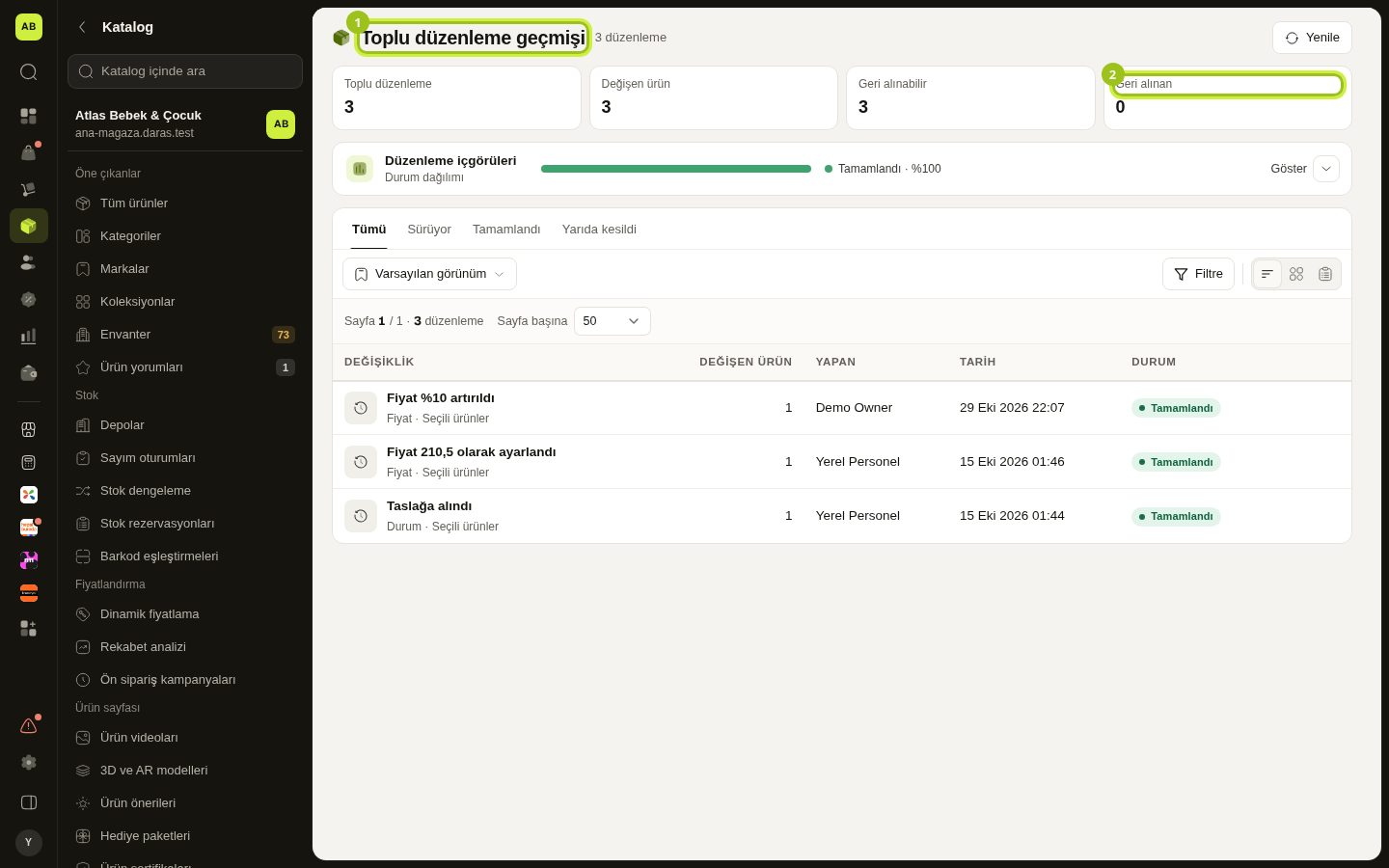
- To view past bulk actions or revert an action, go to the Katalog → Toplu düzenleme geçmişi page.
- The table lists the date of each operation, which field it modified, how many products it affected, and its status.
- If any products could not be updated due to a validation rule, click the Uygulanmayan satırlar (Skipped rows) link to see why.
- To revert the operation and restore products to their previous values, click the Geri al button on the right side of that row and confirm.
Common Issues and Solutions
| Issue / Warning | Cause | Solution |
|---|---|---|
| Some products remained under "Uygulanmayan satırlar" after bulk publishing | Required attributes are missing in those products' categories, or their sale price is 0. |
Open the Uygulanmayan satırlar details to see the missing field; if category attributes are missing, autofill them on the Özellikleri otomatik doldur (Autofill attributes) page. |
| The "Geri al" button appears disabled | The operation has already been undone previously, or a permanent deletion was performed. | Only completed price/field updates that have not yet been reverted can be undone. |
Tips
- Restore prices in one click after a campaign: When you lower prices in bulk for a weekend sale, instead of recalculating prices on Monday morning, simply go to the Toplu düzenleme geçmişi (Bulk edit history) screen and click Geri al next to Friday's price discount operation.