
How to activate Daras Kargo and top up your shipping balance?
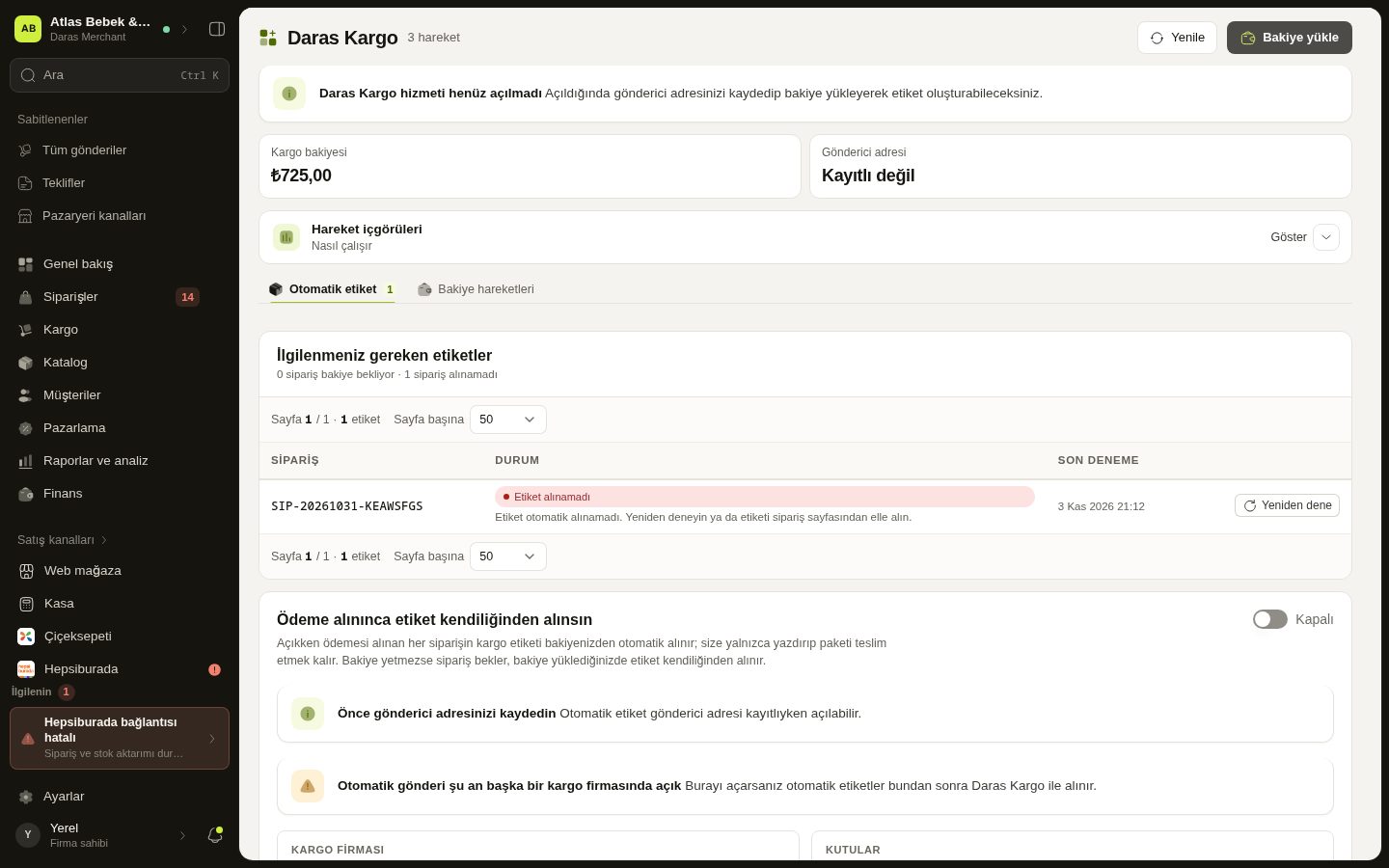
Short answer: To ship at discounted rates without signing individual contracts with shipping carriers, simply go to Kargo → Daras Kargo (Shipping → Daras Kargo), save your origin address using the Gönderici adresini kaydet (Save sender address) button, and add funds to your wallet with the Bakiye yükle (Top up balance) button. As soon as setup is complete, you can generate barcoded shipping labels across all your orders.
Step-by-Step Daras Kargo Setup and Balance Top-Up
Step 1: Save Your Sender (Origin) Address
- From the left menu, go to Kargo → Daras Kargo.
- Complete the following fields in the Gönderici adresi (Sender address) card:
- Ad soyad veya firma adı (Full name or company name)
- Telefon (Phone) and E-posta (Email)
- Şehir (City), İlçe (District), Posta kodu (Postal code), and Açık adres (Street address) (the warehouse address where packages are dropped off at a carrier branch or picked up by a courier)
- Click the Gönderici adresini kaydet button (if your address changes later, you can update it using the Gönderici adresini değiştir (Change sender address) button).
Step 2: Review Discounted Carrier Rates and Top Up Your Balance
- Click the Fiyatları gör (View rates) link on the page to view current shipping fees by volumetric weight (desi).
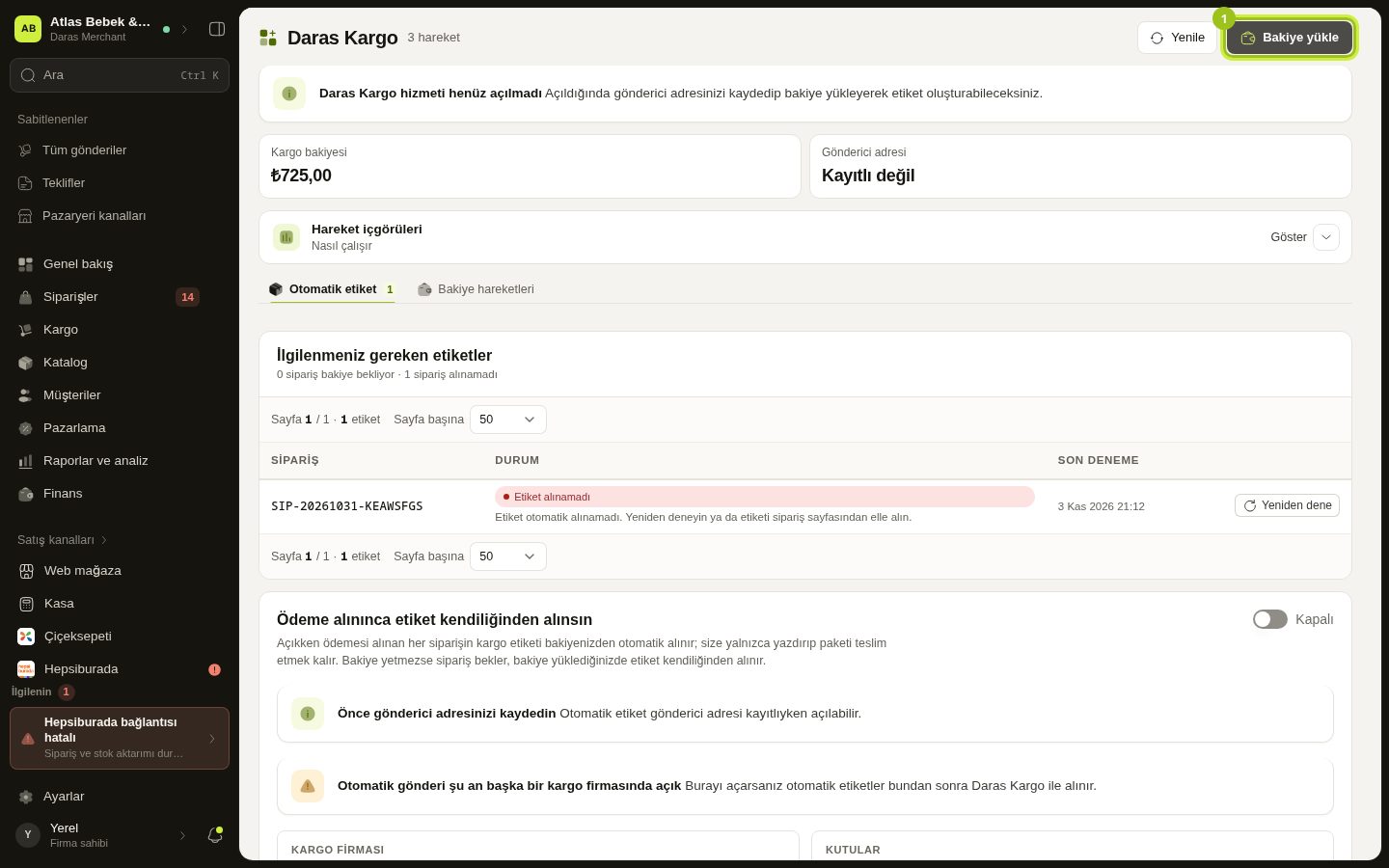
- Click the Bakiye yükle button in the top-right corner to add funds to your shipping wallet.
- In the modal that opens, choose from Hazır tutarlar (Preset amounts) or type the amount you want to add into the Başka tutar (₺) (Other amount (TRY)) box.
- Click the Ödemeye geç (Proceed to payment) button to complete secure payment with your credit or debit card; your balance is credited to your wallet immediately.
Step 3: Create a Daras Kargo Label on an Order and Track Transactions
- Open any order and click the Kargoya hazırla (Prepare shipment) button.
- Select Daras Kargo as the Gönderim yolu (Shipping method), choose a shipping carrier, and press the Gönderiyi oluştur (Create shipment) button.
- Track your balance top-ups and the fee deduction for every generated label in the İşlem geçmişi (Transaction history) table at the bottom of the Kargo → Daras Kargo page.
Common Issues and Solutions
| Issue / Warning | Cause | Solution |
|---|---|---|
| "Adres kaydedilemedi" ("Address could not be saved") | The phone number was not entered as 10 digits without a leading 0, or the province/district field was left blank. |
Check the phone number and street address details, then click the Gönderici adresini kaydet button again. |
| "Daras Kargo bu mağazada açık değil" ("Daras Kargo is not enabled for this store") | The Daras Kargo app is either not installed or turned off in your store. | Enable Daras Kargo under Uygulamalar (Apps), then save your sender address. |
| "Gönderici adresiniz kayıtlı değil" ("Your sender address is not saved") or "İl adı tanınmadı" ("Province name not recognized") | An origin address is required for labels; if the province name does not match Turkey's official province list, the address cannot be used. | Re-save your sender address by selecting the province and district from the dropdown list on the Kargo → Daras Kargo page. |
| "Kargo bakiyeniz bu etiket için yetmiyor" ("Insufficient shipping balance for this label") | Label fees are deducted from your prepaid balance, and your current balance is lower than the fee. | Add funds using Bakiye yükle. If auto-label is enabled, the label is purchased automatically once your balance is sufficient. |
| "Varsayılan kutu tanımlı değil" ("Default box is not defined") | Auto-labeling pulls package dimensions from your default box. | Add a box on the Daras Kargo page and set it as varsayılan (default). |
| "Alıcı adresinde telefon ya da ilçe eksik" ("Phone or district missing in recipient address") | Shipping carriers do not accept shipments without a recipient phone number and district. | Edit the delivery address on the order page and fill in the phone number and district. |
| "Uygun kargo firması bulunamadı" ("No eligible shipping carrier found") | The package weight or dimensions exceed every carrier's limits, or the dimensions were entered incorrectly. | Check the product weight and package dimensions; split the order into multiple packages if needed. |
| "Fiyat teklifinin süresi doldu" ("Rate quote expired"), "Seçilen kargo teklifi artık geçerli değil" ("Selected shipping quote is no longer valid"), or "Kargo fiyatı yükseldi" ("Shipping rate increased") | Carrier quotes are valid for a limited window; if the carrier changed its price, the label is not purchased and nothing is deducted. | Fetch current quotes with Fiyatları yeniden al (Refresh rates), review them, and confirm again. |
| "Kapıda ödemeli siparişler gönderilemez" ("Cash on delivery orders cannot be shipped") or "Yalnız Türkiye içi gönderim" ("Domestic Turkey shipping only") | Daras Kargo currently supports prepaid domestic shipments within Turkey only. | Ship this order using your own carrier agreement or another shipping integration. |
| "Etiket alımı doğrulanıyor" ("Verifying label purchase"), "Kargo firmalarına şu an ulaşılamadı" ("Shipping carriers cannot be reached right now"), or "Daras Kargo şu an etiket alamıyor" ("Daras Kargo cannot purchase labels right now") | The carrier response was delayed or there is a temporary outage; if a fee was deducted, it is refunded automatically. | Wait a few minutes; the order page updates automatically. If the issue persists, open a ticket from the Daras desteği (Daras support) page. |
| "Gönderi kargo firmasına teslim edildiği için iptal edilemez" ("Cannot cancel because shipment was handed over to carrier") | A label cannot be canceled once the package has been handed over to a branch or courier. | Initiate a return process with the shipping carrier; label fees are non-refundable in this case. |
| "Sipariş artık gönderilebilir durumda değil" ("Order is no longer eligible for shipping") | The label was not purchased because the order was canceled or refunded. | Check the order status; reopen the order if it still needs to be shipped. |
| "Otomatik etiket kapatıldığı için alınmadı" ("Label not purchased because auto-label is disabled") | Auto-labeling is turned off in Daras Kargo settings. | Purchase the label manually from the order page or enable auto-labeling in settings. |
| A volumetric weight (desi) discrepancy occurred at the carrier branch | There is a difference between the weight/volumetric weight (desi) entered on the order and the package's actual measured dimensions. | When the carrier branch measures the package, reconciliation is based on actual volumetric weight (desi); any difference is posted to the İşlem geçmişi table with an explanation. |
Tips
- Keep a buffer balance based on your order volume: During campaign periods, keeping enough wallet balance for at least 15–20 shipments is recommended so label printing continues uninterrupted.