
How to approve, reject, and refund return and exchange requests
Use the Siparişler → İadeler (Orders → Returns) screen to review return and exchange requests submitted by your customers in one place, approve items arriving at your warehouse and return them to stock, and complete refunds via virtual POS or store credit.
1. Setting Return Policy Rules
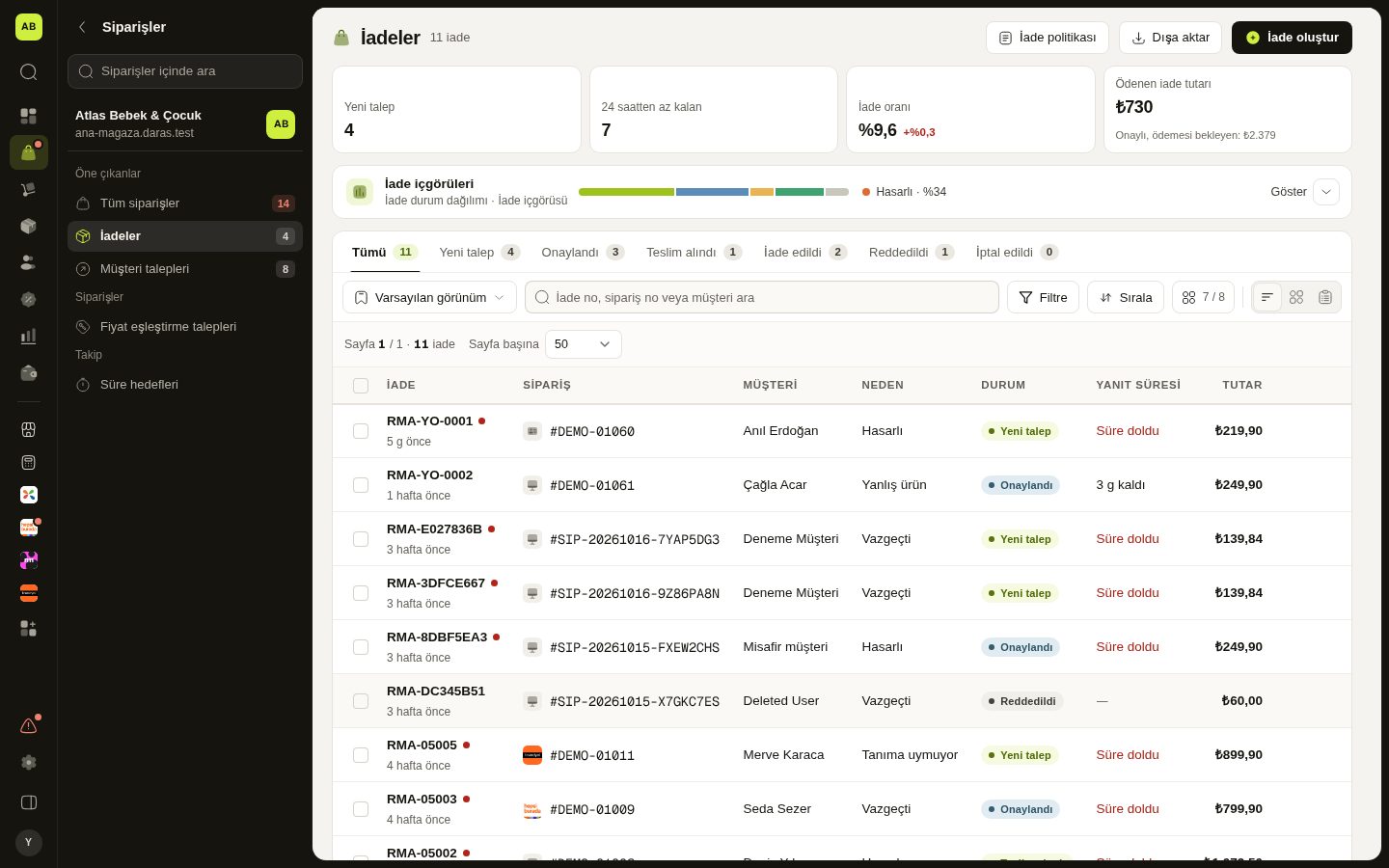
- From the left menu, go to the Siparişler → İadeler page and click the İade politikası (Return policy) button on the top bar.
- Save the statutory withdrawal period (e.g., 14 days), your contracted carrier for free returns, and non-returnable product categories (personalized items, underwear/cosmetics hygiene exceptions, etc.).
2. Creating and Reviewing a Return Request
- When a customer submits a return request from their account on the storefront or from the order tracking screen, the request appears in the İadeler (Returns) list.
- To create a record manually on behalf of a customer, click the İade oluştur (Create return) button in the top-right corner; select the order number, the items to be returned, and the return reason.
- Once the shipment reaches the warehouse, inspect the product:
- If the product is intact, click the Onayla (Approve) button.
- If the product has been used or violates return conditions, click the Reddet (Reject) button and enter the explanation to be sent to the customer.
3. Issuing a Refund and Accounting Record
- On the approved return row, click the Para iadesi yap (Issue refund) button.
- Select the refund method (Orijinal ödeme yöntemine / Karta iade (Refund to original payment method / Card) or Mağaza kredisi olarak tanımla (Issue as store credit)).
- If the product is intact, leave the "Stoğa geri ekle" ("Restock item") checkbox checked and complete the action; for accounting purposes, you can download the returns report using the Dışa aktar (Export) button at the top.
Common Issues and Solutions
| Issue | Cause | Solution |
|---|---|---|
| I get an "Insufficient POS balance" ("POS bakiyesi yetersiz") warning when issuing a refund | The pending daily settlement balance in your virtual POS account is lower than the amount to be refunded | Check your refund balance in your virtual POS dashboard or try again the next day after settlement. |
| Return was approved, but product stock did not increase | Because the "Hasarlı / kusurlu ürün" (Damaged / defective item) reason was selected, the system did not add the defective item back to sellable stock | If the product is in resalable condition, update the quantity from the inventory screen. |
Tips
- Offering a one-click different-size Değişim (Exchange) or Mağaza kredisi (Store credit) instead of a monetary refund for return requests opened due to sizing issues minimizes lost sales.