
How to autofill product attributes
Short answer: Instead of manually entering missing category attributes (Material, Color, Size, Warranty Period, etc.) on your products one by one, you can use the Katalog → Özellikleri otomatik doldur (Catalog → Autofill attributes) screen. When you click Boş özellikleri tara (Scan missing attributes), the system detects attributes from product names and descriptions, and you can complete hundreds of products in a single click with the Önerilenlerin hepsini uygula (Apply all suggested) button.
Autofilling Product Attributes Step by Step
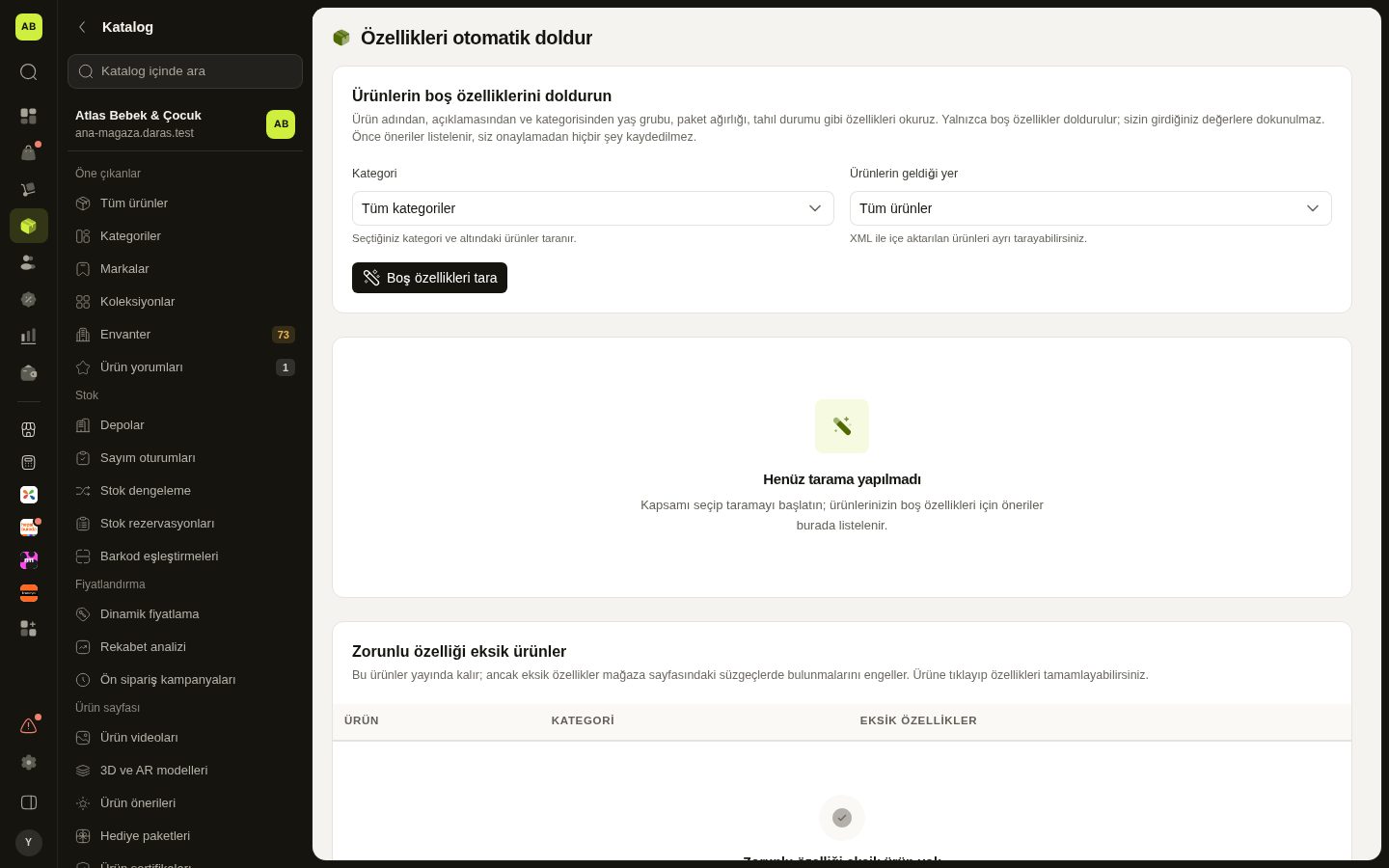
Step 1: Select Scan Filters and Scan Missing Attributes
- From the left menu, go to the Katalog → Özellikleri otomatik doldur page.
- Choose a specific category in the Kategori (Category) field, or leave it as
Tüm kategoriler(All categories) to scan the entire catalog. - In the Ürünlerin geldiği yer (Product source) filter, select
Tümü(All),XML'den gelenler(From XML), orElle eklenenler(Added manually). - If you also want predictions generated for attributes not explicitly stated in the product title or description, check the Kalan boşlar için yapay zekâdan öneri al (Get AI suggestions for remaining blanks) box.
- Click the Boş özellikleri tara button.
Step 2: Save "Ready to Apply" Suggestions in One Click
- Once scanning finishes, high-confidence attribute matches are listed under the Hemen uygulanabilir (Ready to apply) tab.
- Each row shows the product name, the missing attribute (e.g.,
Materyal(Material)), the detected value (e.g.,100% Cotton), and where in the product data it was extracted from. - Click Önerilenlerin hepsini uygula in the top right to save all high-confidence matches at once (or use the row-level Uygula (Apply) button).
Step 3: Approve or Reject Suggestions That Need Manual Review
- Attributes with multiple possibilities or predicted by AI are grouped under the Elle kontrol gereken (Needs manual review) tab.
- Review the suggestions in the table and check the boxes next to the accurate ones.
- Save valid suggestions to products using the Seçilenleri onayla (Approve selected) button in the top bar, and dismiss inaccurate ones with the Seçilenleri reddet (Reject selected) button.
- You can review all saved changes anytime under the Uygulanan (Applied) tab.
Common Issues and Solutions
| Issue / Warning | Cause | Solution |
|---|---|---|
| "Taranacak boş özellik bulunamadı" ("No missing attributes found to scan") | Category attributes for products in the selected category are already filled, or the products have not been assigned a Kategori yet. | On the Katalog → Ürünler (Catalog → Products) screen, make sure your products are assigned to a category and that the category has defined attributes. |
| Few suggestions appeared because product descriptions are short | Especially for XML products imported with only short titles, text matching may not find enough clues. | Check the Kalan boşlar için yapay zekâdan öneri al box before scanning and click Boş özellikleri tara again. |
Tips
- Run right after an XML import: Running this tool right after adding a new supplier XML feed—before sending products to marketplaces—prevents marketplace "Missing required attribute" errors upfront.
- Pass the publish gate quickly: When you encounter a
Kategori özellikleri eksik(Missing category attributes) warning on the product edit screen, you can fill attributes in bulk from this page instead of editing products one by one.