
How to set up e-invoice (e-Fatura), e-archive invoice, and accounting automation from A to Z (Guide)
Short answer: To issue official invoices for your orders with a single click, first define your VAT rules on the Vergi (Tax) screen and connect your pre-accounting / e-invoice (e-Fatura) integrator. Then you can finalize your invoices individually via the Fatura kes (Issue invoice) button in Sipariş detayı (Order details), or in bulk using the Seçilenleri kes (Issue selected) button on the E-fatura ve e-arşiv (E-invoice and e-archive) screen.
Step-by-Step E-Invoice (e-Fatura) and Accounting Automation Setup
Step 1: Configure Tax (VAT) Rates and Exemptions
- Go to Ayarlar → Vergi (Settings → Tax) from the left menu.
- Set your default VAT rate (
20%) and create category-based tax rules for categories subject to reduced VAT (10%for textiles/food or1%for staple food). - Define corporate (B2B) or export exemptions on the Vergi muafiyetleri (Tax exemptions) screen.
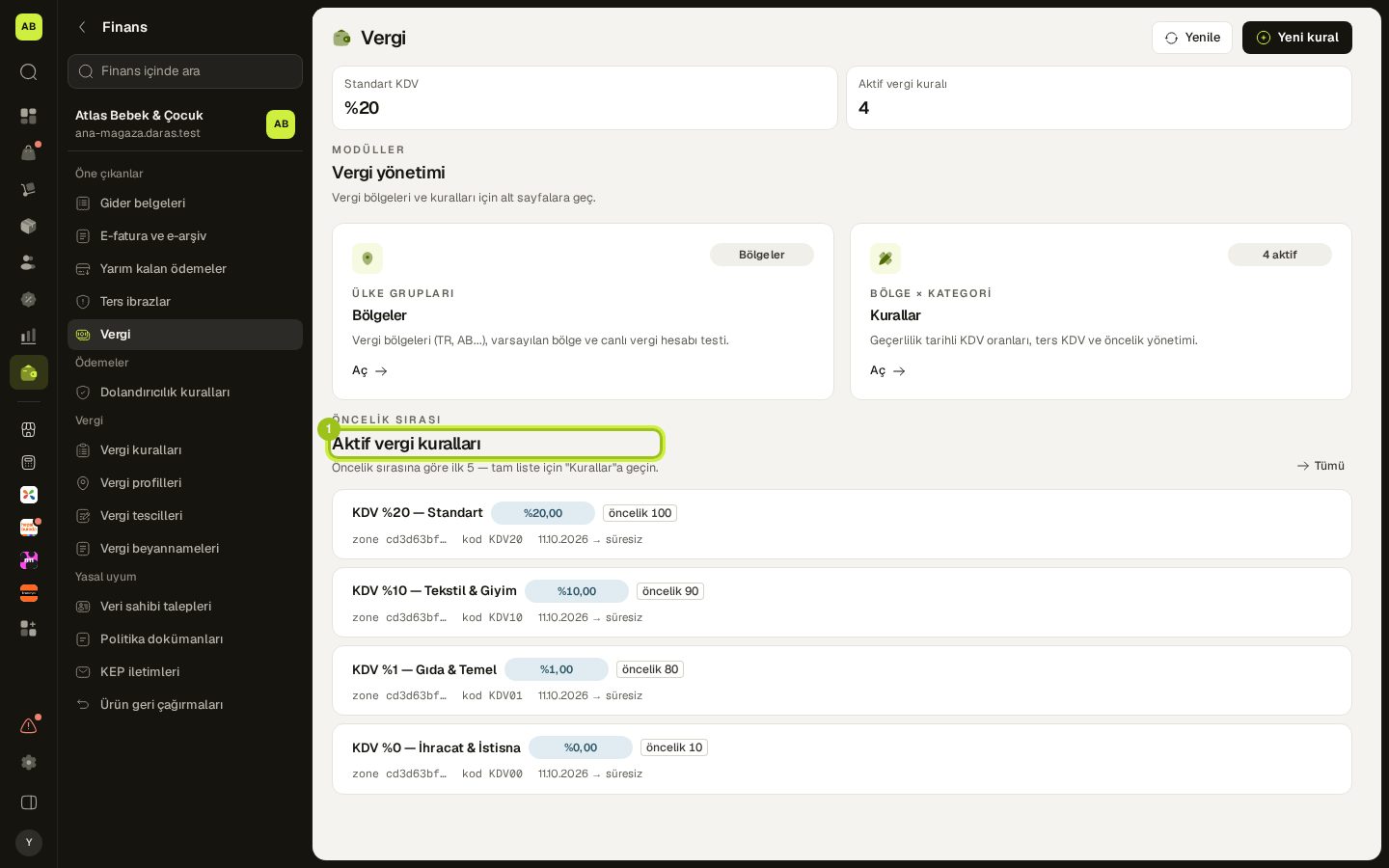
Step 2: Connect Your E-Invoice Integrator or Pre-Accounting Software
- On the Uygulamalar (Apps) or Fatura ayarları (Invoice settings) screen, select the e-document integrator / pre-accounting service you work with (Paraşüt, BizimHesap, DİA, Foriba, QNB eFinans, etc.).
- Enter your API credentials and invoice serial prefix, then activate the connection.
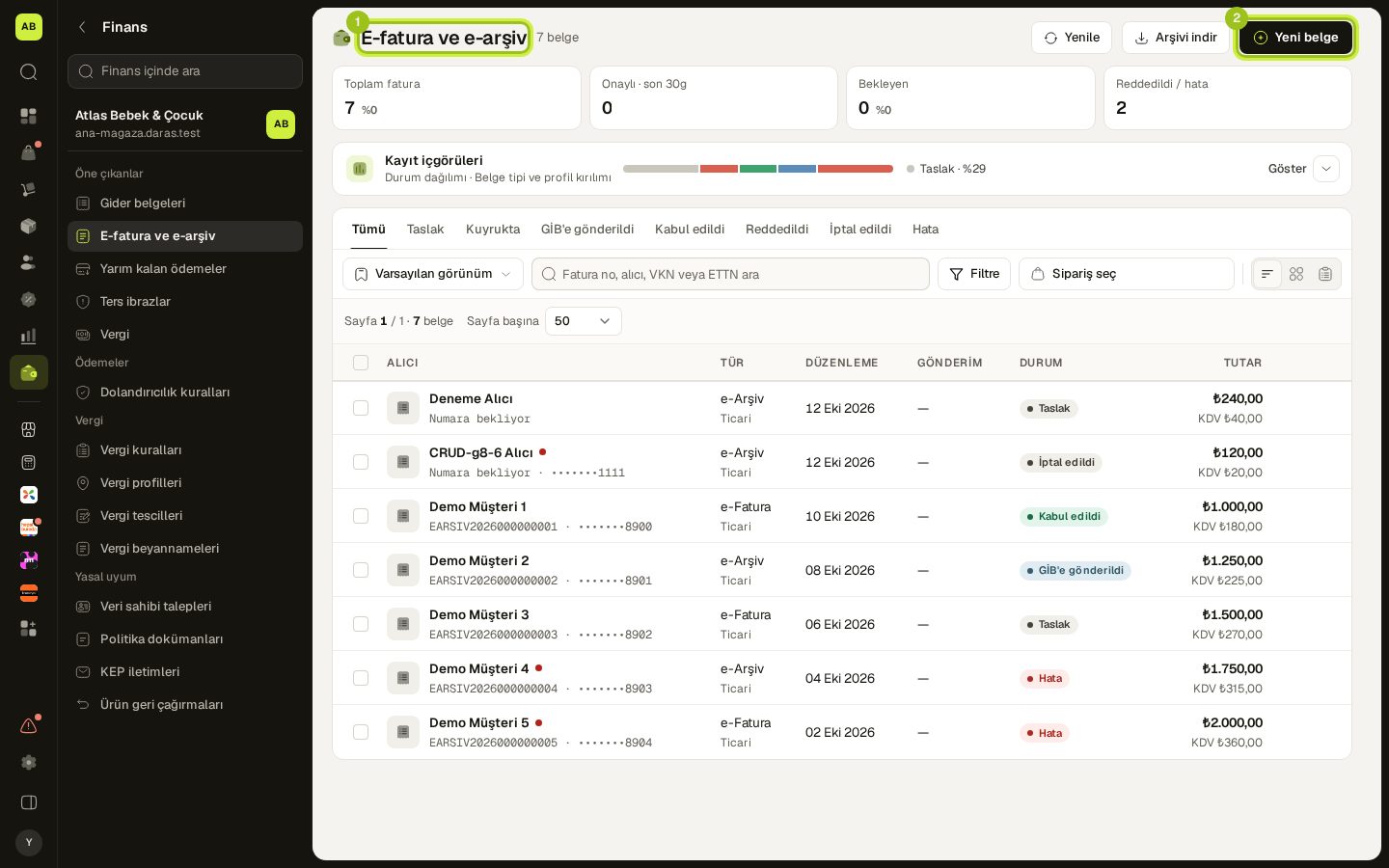
Step 3: Issue Invoices from an Order with One Click or in Bulk
- Single Invoice Issuance: On the order detail page, click the Fatura kes button in the Fatura (Invoice) card on the right; view the generated document with the PDF button or transfer it with Muhasebeye gönder (Send to accounting).
- Bulk Invoice Issuance: Go to the Fatura ve Uyum → E-fatura ve e-arşiv (Invoicing & Compliance → E-invoice and e-archive) page, select the draft documents, and click the Seçilenleri kes button in the top bar.
Step 4: Record Your Expense Documents and Download the Accountant Package
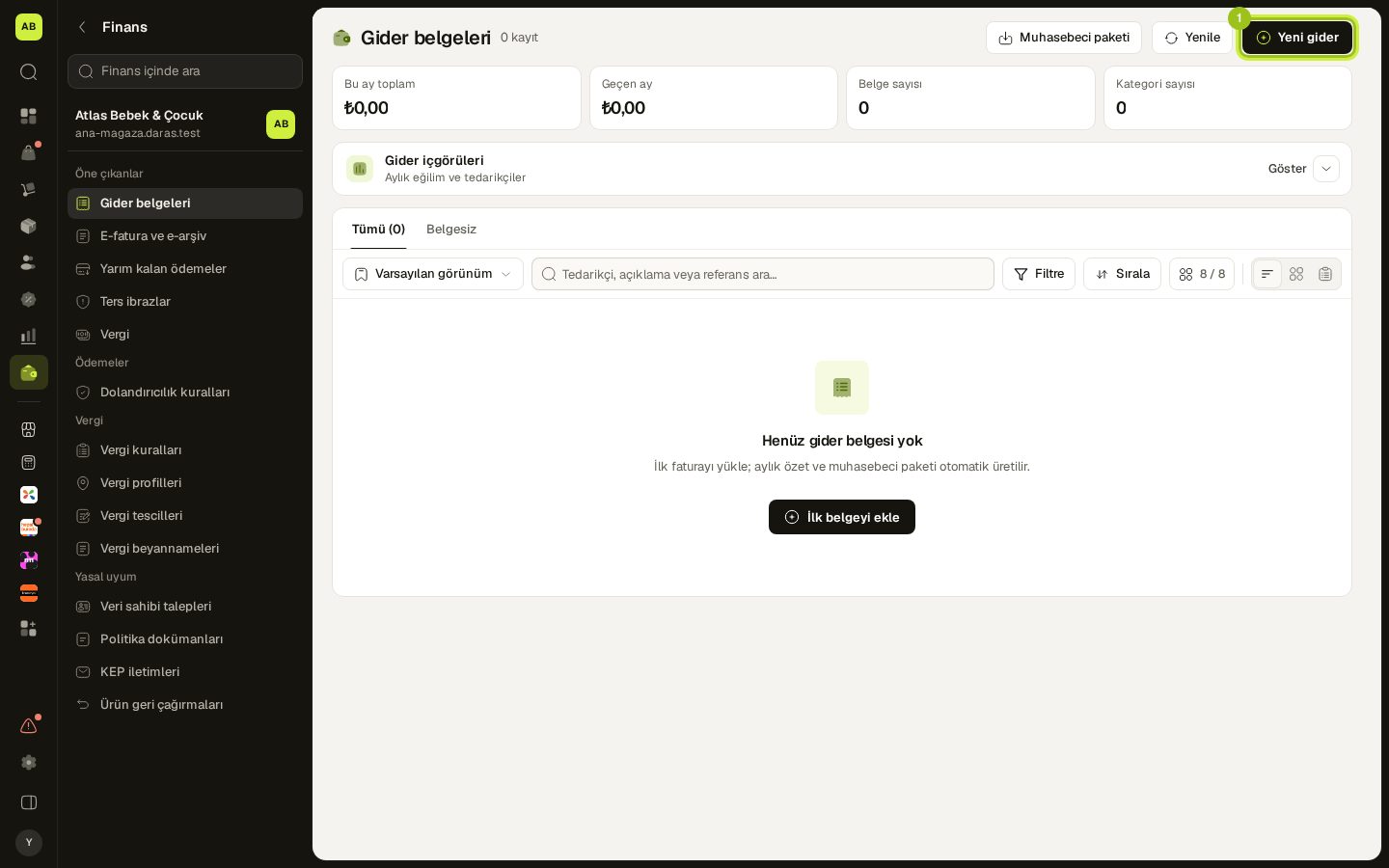
- To record your store's shipping, advertising, rent, and product purchase invoices, go to the Finans → Gider belgeleri (Finance → Expense documents) page and click the Yeni gider (New expense) button.
- To send everything to your accountant at the end of the month, use the Muhasebeci paketini indir (Download accountant package) button on the Gider belgeleri screen and the Arşivi indir (Download archive) button on the E-fatura ve e-arşiv screen.
Common Issues and Solutions
| Issue / Warning | Cause | Solution |
|---|---|---|
| "Belge işlenemedi / VKN-TCKN geçersiz" ("Document could not be processed / Invalid VKN-TCKN") | The corporate customer's tax ID number was entered with missing digits. | Fix the billing details in the order details and resend from the E-fatura ve e-arşiv screen (for individual buyers without a TCKN entered, the system automatically uses the final consumer value 11111111111). |
| Warning "yabancı para birimli gider toplamlara katılmadı" ("foreign-currency expense excluded from totals") in expense totals | The TRY equivalent / exchange rate is missing on an expense document entered in foreign currency. | Click the Kayıtları göster (Show records) button on the Gider belgeleri screen and fill in the exchange rate for the relevant expense. |